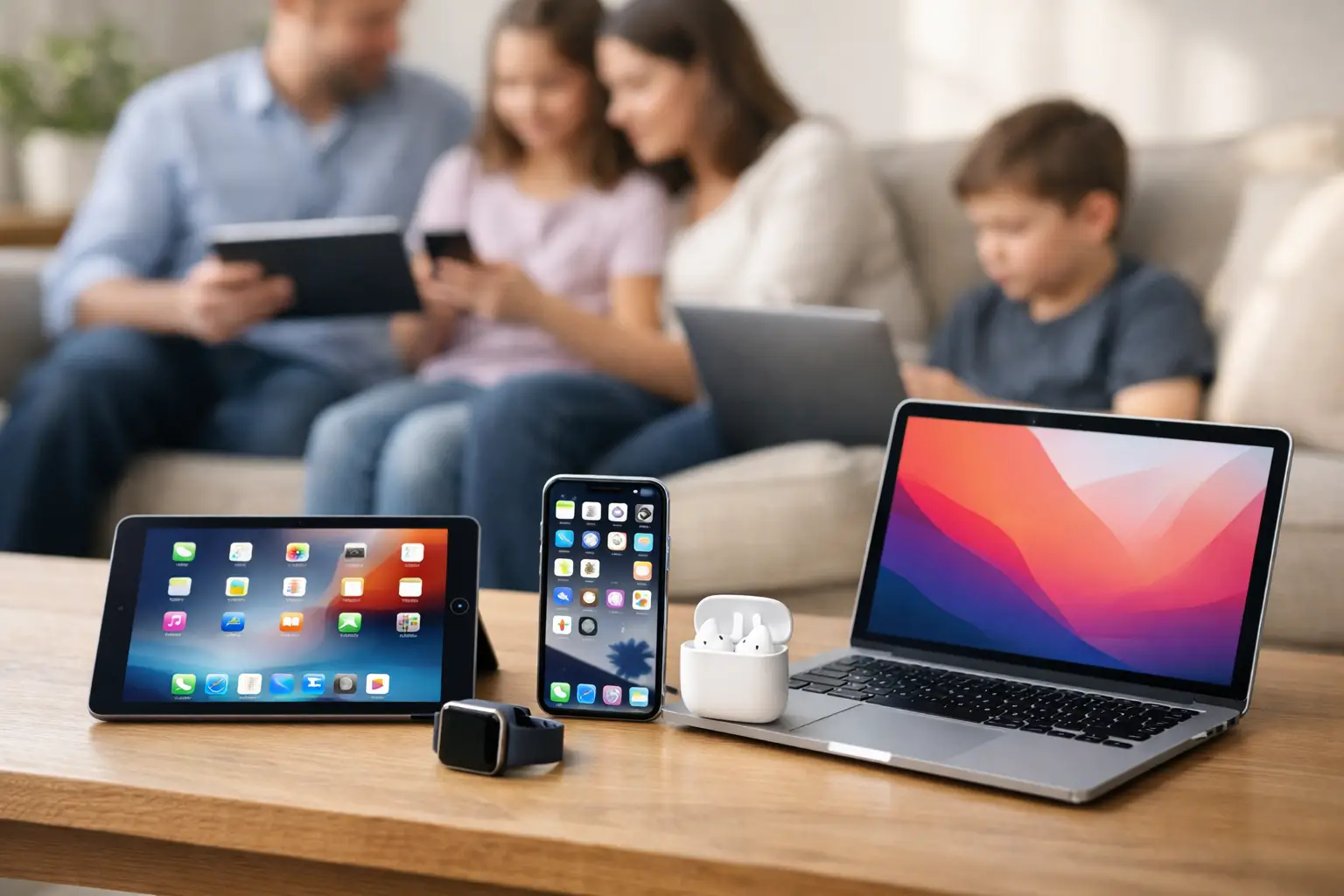

A new Mac should feel like an upgrade, not a worry about where your family photos, work documents or saved passwords have gone. New Mac transfer assistance is about more than copying files from one machine to another. It is about making sure your new computer is ready for your real day-to-day life, with the right accounts, software, printers and security in place.
For some people, Apple’s Migration Assistant works perfectly. For others, the old Mac is slow, damaged, short of storage or packed with years of files that no longer need to come across. The right approach depends on the condition of both Macs, how much data you have and whether the computer is for home or business use.
What should move to your new Mac?
A proper transfer normally includes your user account, documents, photos, music, email settings, contacts, calendars and many application settings. It can also bring across your desktop layout, saved Wi-Fi networks and some passwords stored in iCloud Keychain.
That said, moving everything without checking can recreate problems on a new machine. An old Mac may contain duplicate photos, outdated downloads, unused applications, old installers and files left behind by software you stopped using years ago. If your previous computer has been running slowly, a fresh start with carefully selected data may be the better choice.
For home users, the priority is often preserving photographs, email and familiar ways of working. For a small business, the priorities may be a Microsoft 365 mailbox, customer records, accounting software, shared folders, printer access and secure login details. These need checking individually after the transfer, rather than assuming they will all work exactly as before.
New Mac transfer assistance: the safest starting point
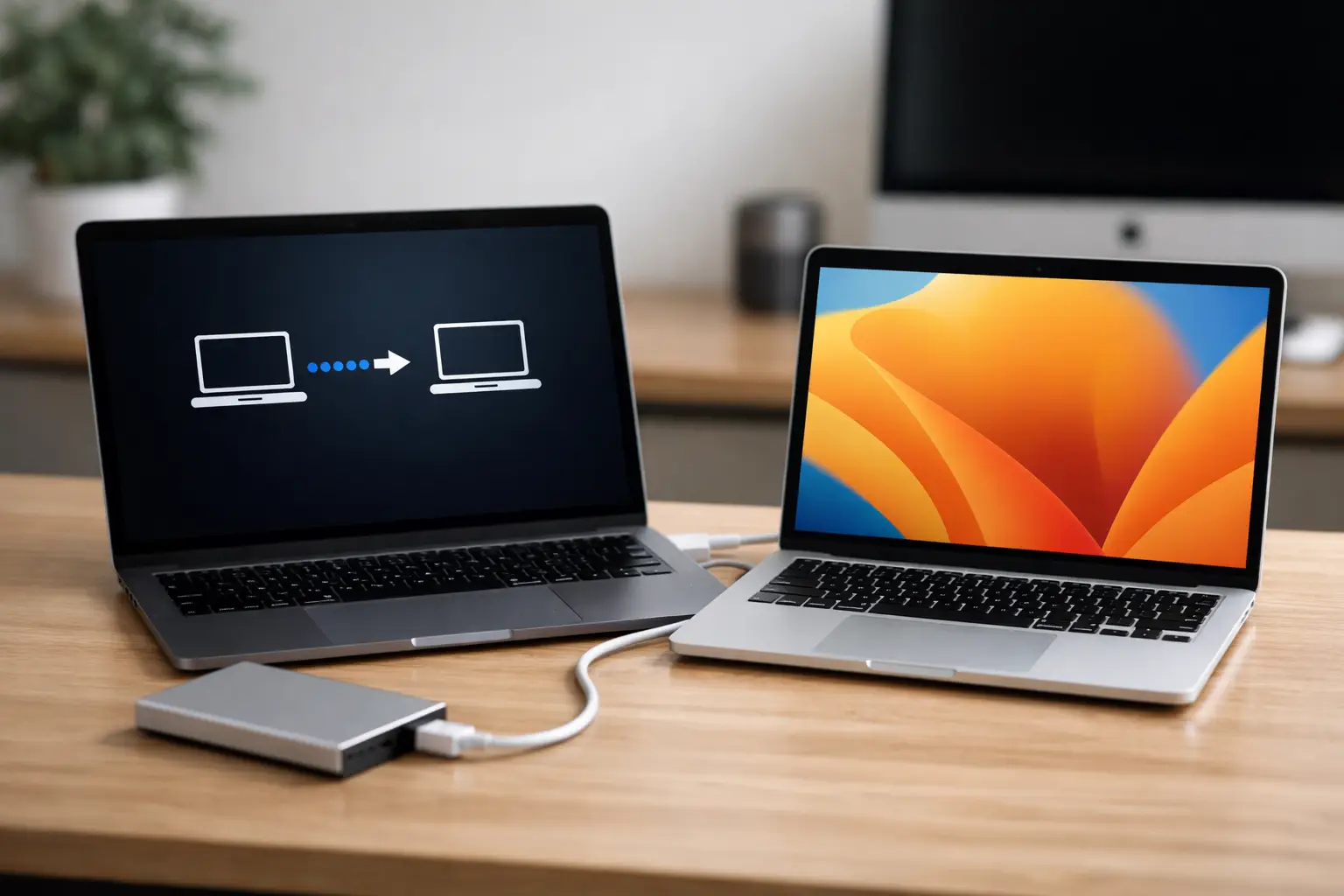
Before anything is moved, make sure the old Mac has a current backup. Time Machine is often the most straightforward option, provided the backup is complete and readable. If the Mac still starts normally, a direct transfer from Mac to Mac can also work well. Using a cable is usually quicker and more reliable than relying on Wi-Fi, especially where there are large photo libraries or years of documents.
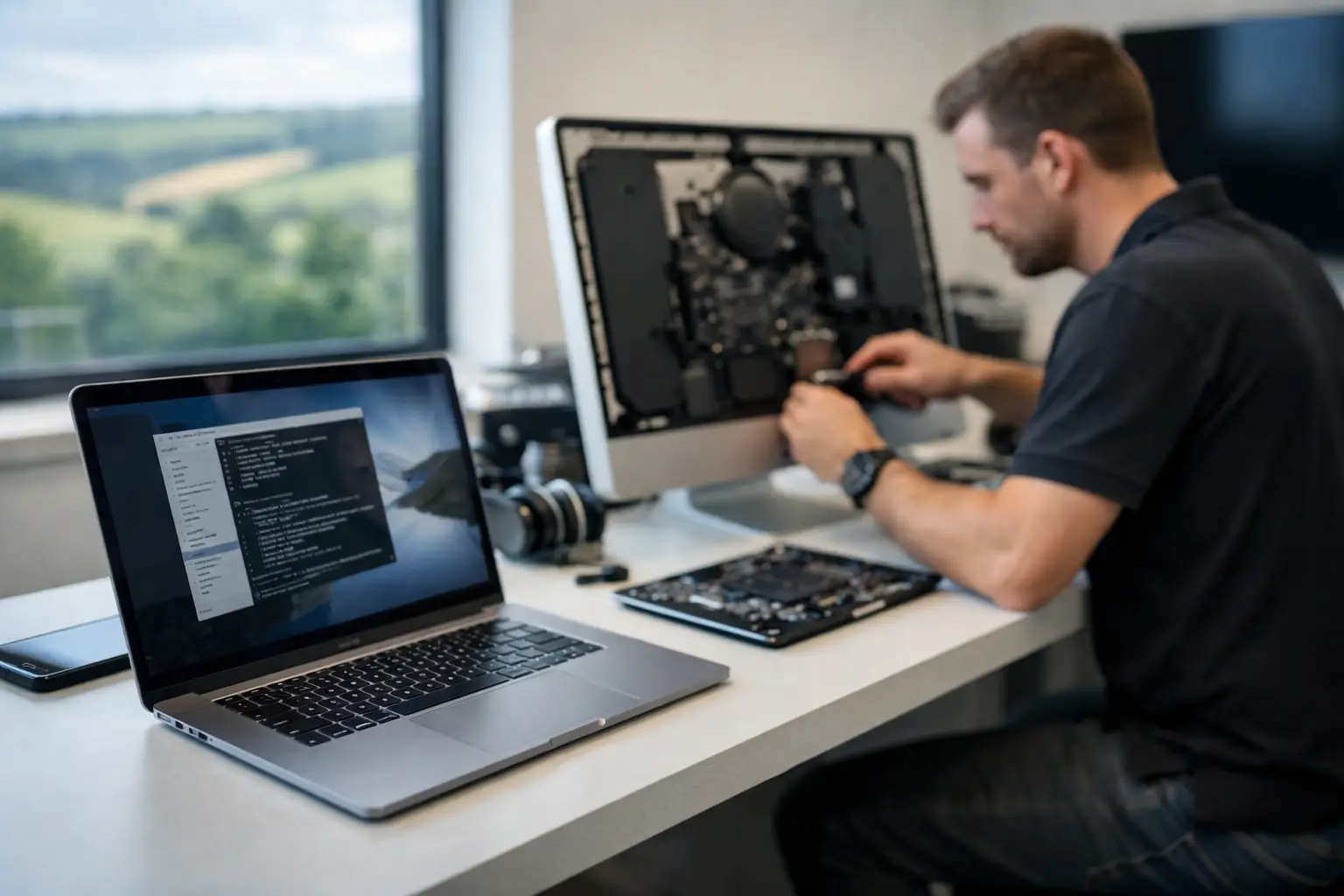
If the old Mac will not switch on, is showing a flashing folder, has liquid damage or keeps crashing, the job becomes a recovery task rather than a standard transfer. It may still be possible to retrieve important files, but it is sensible not to keep restarting or experimenting with repairs if the data matters. Repeated attempts can make a failing drive harder to recover.
It is also worth checking storage before buying or setting up the replacement. A 256GB Mac can be a good fit for somebody who mostly uses cloud storage, but it can quickly fill up if the old computer holds a large Photos library, video projects or local business archives. The new Mac needs enough free space to run comfortably after the transfer, not merely enough room to complete it.
Do not erase the old Mac too early
It is tempting to wipe, sell or pass on the old computer as soon as the new one looks familiar. Leave it alone for a little while. Open important documents, check your photo library, send and receive an email, log into key websites and confirm that the new Mac has everything you rely on.
This is particularly important if you use older software. Some applications will transfer but will not run on a newer version of macOS, and others need their licence reactivated. Keep a record of licence keys, subscription logins and installation files before the old Mac is erased.
Choosing between a full migration and a tidy fresh setup
Migration Assistant is usually the most convenient route when the old Mac is healthy, the accounts are well organised and you want the new machine to feel much the same. It is often ideal for a household Mac where familiar settings reduce stress and everyone wants their own files in the right place.
A fresh setup makes more sense when the previous computer has years of clutter, persistent errors, suspicious pop-ups or a confusing mixture of personal and work material. In that case, documents, photos and essential data can be copied across selectively, while applications are installed again from trusted sources. It takes a little longer, but it can produce a cleaner, faster result.
There is a middle ground too. You can migrate the user account and files, then remove unused applications and review startup items afterwards. The best route is not always the quickest-looking option. It is the one that leaves you with a Mac you understand and can use confidently.
The details that are easy to miss
The transfer itself may be only part of the appointment. A Mac can have all the right files while still being frustrating to use because the details have not been put back in place.
Email is a common example. iCloud, Gmail and Microsoft 365 accounts are usually straightforward once the correct password and verification method are available. Older email accounts supplied by an internet provider can need more careful setup. If your messages were stored only on the old Mac rather than on the server, they must be checked before anything is removed.
Printers deserve attention as well. A printer that worked with an older Mac may need a new driver, a wireless reconnection or a firmware update. For a home office or local business, scanning settings, shared folders and print presets can be just as important as printing a single test page.
Photos should be opened and allowed time to settle. If iCloud Photos is enabled, the library may need hours or days to download originals, depending on broadband speed and the size of the collection. The same applies to iCloud Drive, Dropbox, OneDrive and Google Drive. A cloud icon does not always mean every file is already stored locally on the new Mac.
Passwords and two-factor authentication can catch people out. Your login details may be held in iCloud Keychain, a password manager or an old browser profile. You may also need access to a trusted phone or tablet to approve sign-ins. It is wise to have that device nearby during setup, along with any recovery codes for important accounts.
A sensible checklist for business Macs
For a business computer, downtime has a cost, even for a sole trader working from home. A careful handover should test the essentials before the old machine is retired:
- Email sending and receiving, including shared or delegated mailboxes
- Access to Microsoft 365, cloud drives and team folders
- Accounting, invoicing and industry-specific software
- Printers, scanners, label printers and other connected equipment
- Video calls, calendars and saved contacts
- Backups, security settings and staff access where applicable
It is also a good time to separate personal and business accounts if they have become mixed together. Using one Apple Account, one browser profile or one cloud drive for everything can be convenient at first, but it becomes difficult when a staff member leaves, a device is replaced or someone needs access in an emergency.
When personal help makes the difference
Instructions on a screen can be useful, but they cannot look at your setup and tell you whether a folder is a genuine backup, whether your Photos library is complete, or why your email has stopped syncing. They also cannot sit with you while you check that your new Mac feels comfortable to use.
For customers in Dorset, North Dorset Mac Man can provide one-to-one new Mac support at home or at work, including transfer planning, setup, checking existing backups and getting everyday equipment working again. The aim is not simply to finish a migration screen. It is to leave you able to find your files, use your accounts and know what has been protected.
If the old Mac is still usable, have its charger ready and make a note of any passwords you know you will need. If it is not usable, avoid rushing into a reset or repair attempt before asking for advice. The most valuable part of a new Mac is not the box it arrived in – it is the peace of mind that your digital life has arrived with it.