
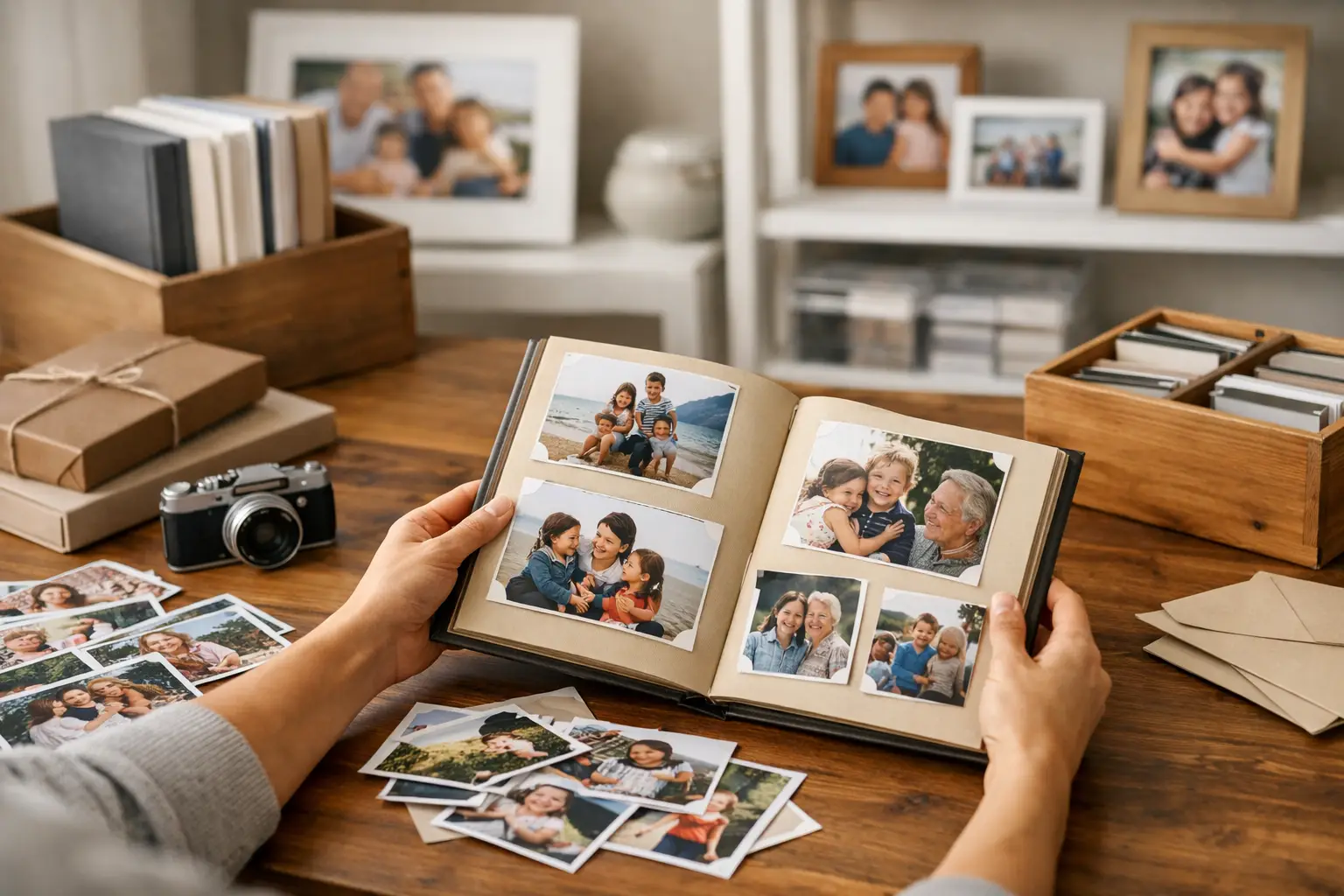
A phone upgrade, an old iMac, a shared iPad and several family members taking pictures can quickly leave you with thousands of photos and no clear idea where anything lives. The best ways to organise family photos are not about making every image perfect. They are about making treasured moments easy to find, safely backed up and simple to share.
For most households, Apple Photos and iCloud can do much of the hard work. The key is setting things up in a way that suits real family life, rather than creating a complicated filing system nobody has time to maintain.
Start by choosing one main photo library
The first decision is where your family photo collection will live. If your household uses iPhones, iPads and Macs, Apple Photos with iCloud Photos is often the easiest option. It keeps the same library available across your own devices, so a picture taken on an iPhone can appear on your Mac without manually copying it across.
That does not necessarily mean every person in the family should share one Apple Account. In fact, that can create problems with messages, contacts, purchases and privacy. Each person should normally have their own account, then use iCloud Shared Photo Library or Shared Albums for pictures you genuinely want to see together.
If one person is the family photo keeper, their Mac can be the main place for scanning old prints, tidying up albums and checking that backups are working. It is perfectly fine for that person to take the lead, provided everyone understands how new photos are being added and shared.
Make space before sorting anything
Trying to organise a full iPhone or Mac that is running out of storage is frustrating. Before you begin, check how much device storage and iCloud storage you have available. A large photo library, especially one containing videos, can soon outgrow the free allowance.
Do not rush to delete pictures simply because they appear twice. Some may be edited versions, Live Photos or images shared through WhatsApp that have been saved separately. Apple Photos has a Duplicates section on newer versions of iOS and macOS, which can help identify genuine copies. Review its suggestions before merging them, particularly if an older photo has different edits or captions.
Also look at screenshots, blurry accidental shots, long videos of a pocket, and pictures of receipts that are no longer needed. Clearing these first makes the useful memories easier to see. Aim for steady progress rather than an all-day clear-out that becomes exhausting.
Use dates as your basic filing system
Photos already records the date and, often, the location of an image. This makes chronological browsing far more useful than folders named things such as “miscellaneous” or “phone photos”. Let the main library remain date-based, then use albums to bring related pictures together.
For example, create albums for a child’s school years, Christmas, holidays, birthdays, pets or a particular family project. Keep album names plain and consistent. “Cornwall Holiday 2025” is easier to search than “Our lovely week away”. If you have several grandchildren or children, a simple naming format such as “Ella – 2024” or “Family Christmas – 2023” keeps the list tidy.
Albums in Apple Photos do not create another physical copy of every photo. They are more like a set of signposts to pictures already in your library. That means you can place the same image in a holiday album and a grandchild’s album without filling your storage twice.
Avoid over-organising
It is tempting to create an album for every outing, meal and school event. In practice, an album structure with too many tiny categories becomes harder to use than no system at all. Start with the occasions people are most likely to ask for later: major holidays, family celebrations, children, weddings, anniversaries and scanned heritage photos.
You can always add more detail later. A library that is easy to maintain will remain useful for years.
Use people, places and search to find the good stuff
One of the most useful features in Apple Photos is People. It can group photos of the same person and, after a little checking from you, make it much faster to find images of a child, parent or family friend. Take time to confirm the suggested names, especially with older photos or relatives who look alike.
The search box is often underused. You can search for a person, place, month, event or object. Searching for “dog”, “beach”, “birthday cake” or “Dorset” can be surprisingly effective. Captions help too. Add a short caption to important older photographs, such as “Grandad at his 80th birthday, 1998”. Years from now, that detail may matter more than the picture’s file date.
For scanned prints, correct the date where you know it. Even using the right year or decade is better than leaving everything dated to the day it was scanned. This small job makes old and new memories sit together in a more meaningful order.
Share family photos without losing control
Family groups often rely on messaging apps for photos, but these can reduce image quality and make pictures difficult to find later. A Shared Album is a better choice for a holiday, wedding or grandchild’s birthday. Invite the right people, add the pictures once, and everyone can view or save the images they want.
A Shared Photo Library can work well for a close household where you want selected pictures from several devices in one place. It needs a little more care than a Shared Album because changes made to shared photos can affect everyone. Discuss what belongs there first. Photos of children, family events and shared trips are obvious choices; private screenshots, work pictures and personal photos usually are not.
If grandparents are less confident with technology, show them one simple way to view the photos rather than giving them several apps and options. A shared album, a digital photo frame or a printed selection can be far more enjoyable than a complicated login process.
Back up photos in more than one place
Syncing is useful, but it is not the same thing as a complete backup. If a photo is deleted from an iPhone using iCloud Photos, that deletion can sync to other devices. The Recently Deleted folder gives you a recovery window, but it should not be your only safety net.
Keep a separate backup of your Mac photo library on an external drive using Time Machine. If you do not use a Mac, consider regularly copying your most important photo archive to a reputable external drive with help from someone who can make sure it is readable. Store that drive somewhere safe, ideally away from the computer itself.
For irreplaceable family photographs, the sensible approach is to have copies in more than one place: your main device or iCloud library, a local backup and another secure copy elsewhere. This protects against theft, accidental deletion, a failed drive or damage at home.
Check the backup, not just the settings
A drive connected to a computer is not automatically a working backup. Every few months, open it and make sure you can see recent files. If you have an older Mac, check whether its operating system and backup drive are still healthy. This is particularly worthwhile before replacing a computer or moving to a new iPhone.
Deal with old photo boxes a little at a time
Boxes of prints, negatives and old albums can feel overwhelming, especially when they include photographs from several generations. Start with the most valuable or vulnerable material rather than trying to scan every print in the loft.
Scan a manageable batch, label it with names and approximate dates, then back it up straight away. Keep the original prints too. A scan is excellent for sharing and preservation, but the original may still have value to the family.
If you are scanning on an iPhone, use good natural light and keep the camera square to the print. For treasured images, a proper flatbed scan will usually give better results. It can be worth asking for help with a first batch so that colours, dates and file names are handled sensibly from the outset.
Set a small routine that lasts
The best photo system is one you can keep up with. Once a month, spend ten minutes removing obvious rubbish, adding the month’s best pictures to one or two albums, and checking that sharing and backups are still behaving as expected. After a family holiday or birthday, do it while names and dates are fresh.
For households with several Apple devices, a little patient setup can prevent duplicate libraries, missing pictures and confusion over whose iCloud storage is being used. North Dorset Mac Man can help set up Photos, iCloud and backups at home, explain what is happening in plain English, and make sure important memories are not left on one ageing device.
The real measure of a well-organised photo library is simple: when someone asks for that picture of Nan on the beach, you can find it, enjoy it and share it without a rummage through old phones.