
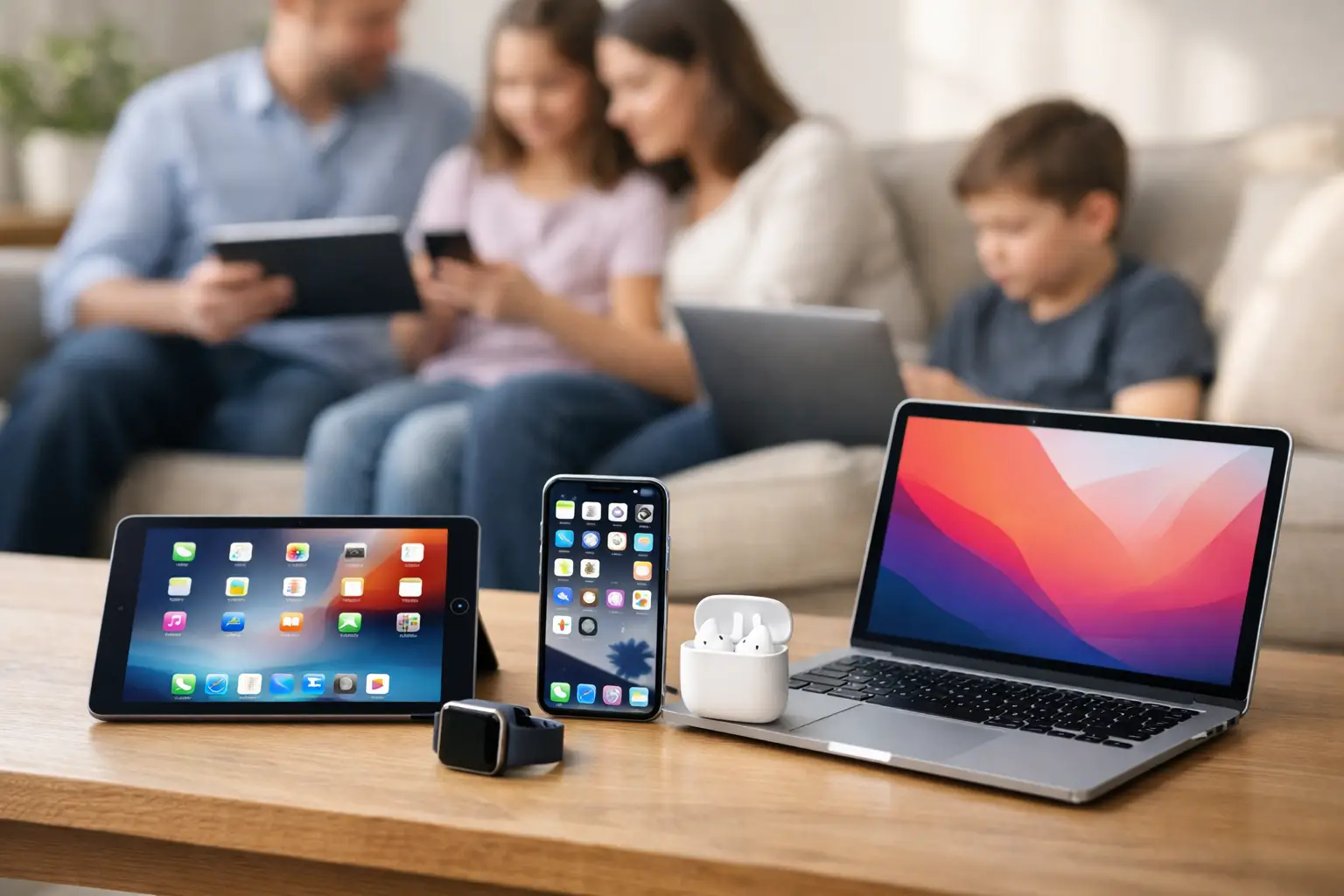
A single Apple Account can seem like the easy answer when a family buys a second iPhone, an iPad for the children, or a new Mac. Then the problems begin: one person’s photos appear on everyone’s screen, contacts merge, messages arrive in the wrong place, and nobody is quite sure which password to use. This guide to shared Apple accounts explains what to share, what to keep private, and how to put things right without losing precious data.
Apple now calls an Apple ID an Apple Account. The name has changed, but the principle has not: it is designed to belong to one person. It holds private information, including iCloud Photos, passwords, device backups, Find My location, messages and payment details. Sharing that account is possible, but it nearly always creates complications further down the line.
A guide to shared Apple accounts: the safer approach
For most households, Family Sharing is the answer. It allows up to six people to keep their own Apple Accounts while sharing selected purchases and subscriptions. Depending on what your household uses, this can include apps, music, films, Apple TV+, Apple Music family plans, iCloud+ storage and some App Store purchases.
Crucially, each person keeps their own photos, contacts, messages, Safari history, notes and device backup. Mum’s new iPhone does not fill up with a teenager’s screenshots. A partner can replace their handset without taking the household’s address book with them. Everyone can use Find My appropriately, with location sharing chosen rather than assumed.
One adult becomes the family organiser and invites the others through Settings on an iPhone or iPad, or System Settings on a Mac. The organiser’s payment method is normally used for shared purchases, although Ask to Buy can be enabled for children so that an adult approves requests first.
This arrangement is not perfect for every family. Purchase sharing means the organiser may be charged for an app someone else buys, and not every purchase can be shared. It is still far cleaner than giving everybody one login and trying to untangle the consequences later.
Decide what really needs to be shared
The word ‘shared’ can mean several different things. A couple may want one photo library for family pictures. Parents may need to manage a child’s screen time. Adult children may simply want to help an older relative with appointments and medication reminders. These are different jobs and they need different Apple features.
For photos, consider an iCloud Shared Photo Library or shared albums rather than one common Apple Account. A Shared Photo Library can be useful for a couple or family who want one place for holiday and children’s photos, while each person still has a separate personal library. Shared albums are better for selected pictures, such as a birthday or family holiday, rather than every image taken on every device.
For calendars and reminders, share the individual calendar or list with the people who need it. A family calendar for school dates, bin collections and appointments is far more useful than merging everybody’s personal diary. The same applies to Notes: share a shopping list, holiday plan or household information note, rather than the whole account.
For passwords, use a shared password group where available, or agree on another secure method. Never put the main Apple Account password on a kitchen noticeboard or in a group chat. That password can give access to a great deal more than an app purchase.
Why one Apple Account causes trouble
When several people sign in with the same Apple Account, Apple treats their devices as belonging to one person. That is why calls, FaceTime requests, messages, contacts and photos can cross over. It is not usually a fault with the phone or Mac. It is the account doing exactly what it was set up to do.
The most worrying issue is often iCloud Photos. If it is switched on across devices under the same account, deleting an image on one device can delete it from the others as well. A well-meaning clear-out of an old iPad can therefore remove years of photographs from a newer iPhone.
Backups are another concern. Multiple devices may compete for the same iCloud storage allowance, and it can be difficult to identify whose backup is whose. Find My can become confusing too, particularly if a device is sold, passed on or lost. The old account may remain attached through Activation Lock, leaving the new owner unable to set it up.
There is also a privacy point that is easy to overlook. Shared accounts can expose messages, browsing data, saved passwords, health information and location. Even in a close family, most people deserve a private digital space.
If you already share an account
Do not rush to sign out of every device. A hurried change can lead to missing photos, contacts or app data, especially where devices have not been backed up recently. Start by working out what is stored in iCloud and what is only stored locally on each device.
Make a current backup of every iPhone, iPad and Mac. Check the photo library carefully and make sure important pictures exist in more than one safe place before changing settings. If a Mac contains files that are not in iCloud Drive, copy them to an external drive as well.
Next, create a separate Apple Account for each person who does not already have one. When signing a device out of the shared account, read each prompt slowly. Apple will often ask whether you want to keep a copy of contacts, calendars, Safari data or other information on that device. The correct choice depends on the data involved, so this is the stage where a little patient checking prevents a lot of tidying up later.
Once personal accounts are in place, set up Family Sharing and then deliberately share the items that matter: subscriptions, purchases, a calendar, a reminder list or a photo library. If there are children involved, set their accounts up with the correct age and parental controls rather than lending them an adult login.
It can take time for photos and purchases to settle after a change. Keep the old account accessible until you are confident that everything important is present, but do not continue using it across all devices as the long-term solution.
Shared Apple accounts in a small business
A shared Apple Account is just as risky at work, and the stakes can be higher. A sole trader may initially use one account across an iPhone, MacBook and iPad, which is usually sensible if they are the only person using them. The problem starts when a colleague, assistant or contractor is given that login.
That person may gain access to business emails, saved passwords, customer contacts, documents, payment details and Find My controls. If they leave, changing the password can lock out the owner’s own devices too. It also becomes difficult to tell who bought an app, changed a setting or removed a file.
For a small team, each person should use their own Apple Account on their own user profile. Shared business documents belong in a properly managed shared storage location, and shared calendars should be shared as calendars. A Mac used by several people should have separate user accounts, not one common desktop login.
A genuinely shared iPad, such as one used at a reception desk or for a community group’s events, needs a clear plan. It may be best set up with a business-controlled account that has only the apps and information needed for that role. Avoid storing personal photos, private messages or a director’s personal payment card on it. If several staff members use it for different tasks, professional device management may be worth considering.
A few settings worth checking
After setting up separate accounts, look at Find My, iCloud storage, payment methods and trusted phone numbers. Make sure two-factor authentication is enabled for every adult account and that recovery details are current. A trusted phone number belonging to somebody who no longer works with the business, or an old mobile number from years ago, can cause real difficulty when access is needed quickly.
On family devices, check which phone numbers and email addresses are selected for Messages and FaceTime. This simple check often stops calls and texts appearing on the wrong iPad or Mac. On a shared household Mac, create separate macOS user accounts so that bookmarks, files and saved passwords do not blend together.
There is no prize for doing this all in one sitting. Start with the account that causes the most confusion, protect the data, then work methodically through the rest. If photos, old purchases or a departing staff member make the change feel risky, hands-on help can save hours of uncertainty. North Dorset Mac Man can help households and local businesses sort account sharing without treating anyone like they should already know the answers. A little careful separation now leaves everyone free to use their own Apple devices with far less worry.