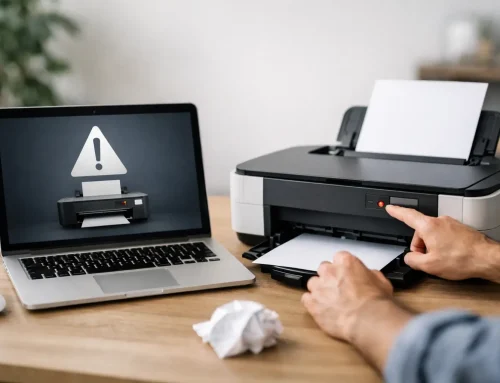


A Mac ransomware recovery example is most useful when it shows the decisions that matter in the first hour, rather than promising a magic fix. A frightening message, inaccessible documents and a ticking ransom demand can make anyone feel pressured to act quickly. The safest response is usually the opposite: pause, disconnect the Mac from networks, and avoid changing anything until the situation is understood.
This representative example is based on the sort of practical problem a small Dorset business might face. Details have been changed, but the recovery process is realistic. Every incident is different, particularly where cloud storage, older backups or several staff devices are involved.
Mac ransomware recovery example: a small business case
A local sole trader used a MacBook Air for customer quotes, invoices, photographs and project documents. The files lived mainly in the Documents folder, with some synchronised through iCloud Drive. One morning, several folders had unfamiliar file extensions and would not open. A text file on the desktop claimed the files were encrypted and demanded payment in cryptocurrency.
The owner had already clicked the note but had not paid. More importantly, they had not started deleting files, installing random cleaning software, or repeatedly entering passwords into a pop-up. They switched off Wi‑Fi immediately and unplugged an external drive that happened to be connected for routine backups.
That was a very good start. Ransomware can sometimes continue encrypting files while a Mac is connected to network shares, external drives or cloud services. Disconnecting limits the damage. It also prevents a suspected attacker from maintaining contact with the machine.
The first task was not to restore files. It was to establish what had happened and what had survived. We checked whether the affected documents were genuinely encrypted, whether other user accounts were affected, and whether iCloud Drive had synchronised the altered copies elsewhere. We also looked at the Mac’s recent downloads, login items, browser extensions and installed applications for a likely route in.
In this case, the infection appeared to have begun with a convincing-looking invoice attachment received by email. The attachment asked the owner to enable access to view a document. It was not a normal invoice at all.
What was recovered, and why it was possible
The business had a Time Machine backup drive. The key piece of luck was that it was not permanently attached to the Mac. It was normally connected only at the end of the working day, so its most recent backup was from the previous evening and had not been encrypted.
Before restoring, we made sure the backup was readable from a separate, clean environment. Restoring straight back onto a potentially compromised Mac can reintroduce the problem or leave unwanted software in place. The Mac was then erased and macOS was reinstalled using the built-in Recovery system. Once the operating system was clean and fully updated, documents, photos and essential settings were restored from the last known good backup.
The result was not perfect, but it was manageable. The business lost a morning’s work and had to recreate two updated quotes. Its customer records, earlier invoices and project photographs were recovered. The ransom was not paid.
That last point matters. Payment does not guarantee that criminals will provide a working decryption key, that it will restore every file, or that they have not copied information already. It can also mark a victim as willing to pay. Where good, isolated backups exist, restoring from them is normally the safer route.
The cloud storage complication
iCloud Drive was helpful, but not a complete safety net. Cloud synchronisation is designed to keep files matching across devices. If an encrypted or corrupted copy syncs, it can overwrite the healthy version elsewhere too.
Fortunately, some recent files could be retrieved from version history and recently deleted areas, depending on their age and the service’s retention rules. This is why cloud storage should be treated as useful resilience, not the only backup plan. A proper backup needs previous versions and, ideally, a copy that is offline or otherwise protected from alteration.
The first hour: what to do if you suspect ransomware
If your Mac displays a ransom message, files suddenly will not open, or names and extensions change across lots of documents, disconnect it from Wi‑Fi and unplug any Ethernet cable. Disconnect external hard drives, USB sticks and network storage as well. Do not connect another backup drive to investigate.
Take photographs of the message with your mobile phone and note the time you noticed the issue. Keep the affected Mac switched on if it is safe to do so, but do not keep clicking around or attempting to run downloaded ‘decryption’ tools. These can make recovery harder, install further malware, or destroy useful evidence.
Do not pay or contact the criminals in the heat of the moment. If you use the Mac for a business, think beyond the files on the screen. Change passwords from a separate trusted device, beginning with the email account connected to the business, Apple Account, cloud storage and banking or accounting services. Turn on two-factor authentication where it is not already in place.
If customer or staff information may have been accessed, a business may also need to consider its data protection responsibilities. The right response depends on what data was involved, whether it was merely encrypted or may have been taken, and the likely risk to people affected. Keep clear notes while facts are fresh.
Why recovery should start with a clean Mac
A common temptation is to remove the ransom note, drag suspicious apps to the Bin and carry on. That can be enough for a harmless nuisance, but it is not a sound assumption after a genuine ransomware incident. The visible ransom note may be only one part of the problem.
For a serious case, a clean erase and reinstall is often the most dependable way to regain trust in the device. It takes longer than a quick tidy-up, and it means checking that the backup predates the incident, but it avoids restoring hidden persistence tools along with your documents.
There are exceptions. If the issue is confirmed as a fake browser pop-up, for example, no files may be encrypted and an erase may not be necessary. Equally, if the Mac holds business evidence relevant to fraud or an insurance claim, it may be sensible to preserve the device for professional assessment before wiping it. This is where calm, one-to-one advice is more valuable than a generic checklist.
Building a backup plan that actually helps
The strongest lesson from this Mac ransomware recovery example is not which recovery button was pressed. It is that the outcome was decided before the attack, by the backup routine.
For most households, Time Machine to an encrypted external drive is an excellent starting point. For a business, use at least two backup copies on different types of storage, with one kept away from the Mac or protected so that ordinary day-to-day access cannot alter it. Check that backups complete successfully and practise opening a few older documents occasionally. A backup that has never been tested is only a hopeful assumption.
It is also worth separating work and personal use where possible. Use a non-administrator account for everyday tasks, keep macOS and applications updated, and remove software you no longer use. Be particularly cautious with unexpected attachments, fake delivery notices and pop-ups that claim a Mac is infected. Apple will not normally display a browser message demanding that you telephone a number or install a cleaner immediately.
For families, this can be as simple as agreeing that an unfamiliar message is shown to someone before anything is opened. For a small team, it may mean a short process for checking unusual payment requests and reporting suspicious emails. Technology helps, but a calm pause before clicking is often the best protection.
Getting practical help when it happens
Ransomware is upsetting because it turns ordinary files into an urgent problem. You do not need to diagnose every technical detail alone, and you should not feel embarrassed about how it started. The priority is to contain the incident, protect accounts, assess backups and restore the Mac safely.
North Dorset Mac Man can provide patient, hands-on help at home or at your workplace across Dorset, including urgent assistance when a Mac problem cannot wait. A quick call can help establish the safest next step before well-meant actions make a recoverable situation worse.
The useful habit to take from any scare is simple: keep a backup you can restore, keep a copy out of reach of your everyday Mac, and ask for help before panic chooses the next click.