
Losing a Mac is annoying. Losing what is on it is far worse.
Most people only start looking seriously at the best backup options for Mac after a scare – a failed update, a liquid spill, a stolen laptop, or years of family photos suddenly refusing to open. By that point, choices that should have been simple can feel urgent and confusing. The good news is that Mac backup does not need to be complicated, but the right setup does depend on how you use your machine.
For a family Mac at home, the priority is usually photos, documents and ease of recovery. For a small business, it is often speed, continuity and having more than one copy in more than one place. The best backup plan is rarely one single product. It is a sensible combination that fits your budget, your habits and how much disruption you could tolerate if something went wrong.
What makes the best backup options for Mac?
A good backup is not simply a copy of your files sitting somewhere you forget about. It needs to be automatic enough that you do not skip it, reliable enough that it actually works when needed, and easy enough that you can restore files without a technical headache.
There is also an important distinction between syncing and backing up. iCloud Drive, Dropbox and similar services are helpful for keeping files updated across devices, but syncing alone is not the same as a proper backup. If a file is deleted, overwritten, or affected by ransomware, that change can sync too. A backup gives you a way back.
For most Mac users, the safest thinking is the simple 3-2-1 idea. Keep three copies of your data, on two different types of storage, with one copy off-site. You do not need to become an IT department overnight, but that principle is still the best protection against real-world problems.
Time Machine is still the simplest starting point
If you own a Mac and do not yet have a backup, Time Machine is usually the first place to start. It is built into macOS, works quietly in the background, and lets you restore individual files or roll back to an earlier state if something goes wrong.
All you need is a suitable external drive or a compatible network destination. Once set up, it takes regular backups automatically. For many home users, that is enough to cover the most common issues – accidental deletion, failed software updates, and replacing an old Mac with a new one.
Time Machine does have limits. If the external drive sits beside your Mac and both are lost in a burglary or damaged by fire, you have lost both copies. It is also not ideal as your only line of defence for business continuity. Still, as a first layer, it is hard to beat because it is straightforward and built for Mac users rather than IT specialists.
Who Time Machine suits best
Time Machine works particularly well for households, retired users, students and anyone who wants a set-and-forget backup without monthly subscription costs. It is also useful if you like the reassurance of being able to recover one missing file rather than restoring everything.
If your Mac stays mainly at home, a desktop external drive can be a good choice. If you use a MacBook and travel around Dorset or work between home and office, a portable SSD may be more practical because it is quicker and easier to reconnect regularly.
External drives are affordable, but they need discipline
An external hard drive or SSD is one of the most cost-effective backup options. It gives you direct control, no reliance on internet speed, and fast restores if a Mac needs to be rebuilt.
The trade-off is human nature. Plenty of people buy a drive with good intentions, plug it in once, then leave it in a drawer for six months. A backup that only happens when you remember is not much comfort after a hardware failure.
If you go down this route, automation matters. Using the drive with Time Machine is usually the best answer. If you want extra protection, keep a second drive and rotate it occasionally, storing one elsewhere. That could be at a relative’s house or at your workplace if appropriate. For small businesses, this can make a big difference without huge cost.
Hard drive or SSD?
Traditional hard drives are cheaper for larger capacities, which makes them fine for photo libraries and general home use. SSDs are faster, quieter and less vulnerable to knocks, which is useful for portable setups and working professionals. The downside is price. If budget matters more than speed, a standard external hard drive still does the job perfectly well.
iCloud is useful, but it should not be your only backup
Apple makes iCloud feel like the obvious answer, and for some parts of your digital life it is genuinely helpful. Photos, contacts, calendars, notes and files can stay in sync across your Apple devices, and if you replace a Mac or iPhone it can make setup much easier.
But iCloud is best seen as part of a backup strategy, not the whole strategy. It is excellent for convenience and continuity, yet it is not a full image of your Mac in the same way Time Machine can be. If your machine develops system problems, or you need to restore everything exactly as it was, iCloud may not give you the complete safety net you expect.
For many households, the right approach is iCloud plus Time Machine. iCloud keeps current files available and useful across devices, while Time Machine protects against accidental changes and provides a local restore option.
For business users, especially those with accounts, client records or project folders, relying on iCloud alone is risky. You need something with proper version history and a second layer that is independent of the device.
Cloud backup services add off-site protection
If you want one of the best backup options for Mac from a resilience point of view, a dedicated cloud backup service is worth serious thought. Unlike a simple sync service, cloud backup is designed to keep a protected copy of your data in a separate location.
This matters if the Mac is stolen, the office has a break-in, or an external drive fails at the worst possible moment. An off-site backup means your data still exists somewhere else.
The main downside is speed. The first backup can take a long time, especially if you have years of photos or video files and a slower broadband connection. Restoring large amounts of data can also take time. That said, once the initial upload is done, ongoing backups are usually much more manageable.
For small businesses, cloud backup can be a sensible safeguard because it reduces the single-point-of-failure problem. For home users with precious photo libraries, it can be the difference between a very bad week and a recoverable inconvenience.
The best setup for most people is a layered one
When customers ask for the best backup options for Mac, the most honest answer is usually this: use more than one method.
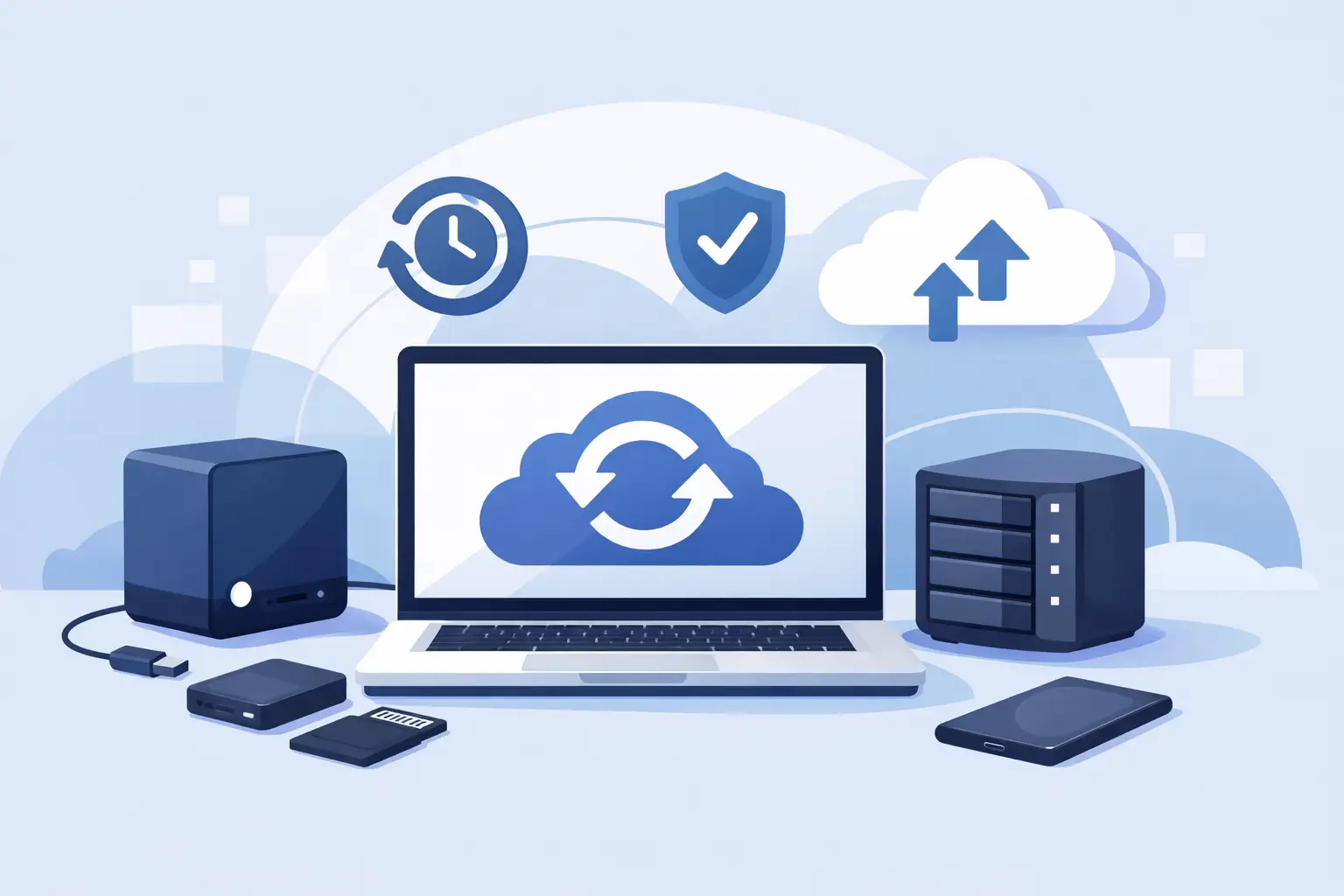
A local backup gives you speed. A cloud or off-site backup gives you resilience. Syncing services give you convenience. Those are different jobs, and expecting one tool to do all three often leads to disappointment.
For a typical household, a very sensible setup is Time Machine to an external drive, plus iCloud for everyday syncing of photos and documents. For someone running a business from a MacBook, a better setup may be Time Machine to a local drive, a cloud backup service for off-site protection, and sensible storage habits so critical files are not scattered across random desktops and downloads folders.
This is also where a little housekeeping helps. Backups work better when file locations are consistent, old user accounts are tidied up, and the Mac has enough free space to operate properly. Backup problems are often symptoms of a messy setup rather than faulty software.
Common mistakes that catch Mac users out
One of the biggest mistakes is assuming that because files appear on an iPhone, iPad and Mac, they must be safely backed up. Often they are merely synced.
Another is buying a drive that is too small. Backups need room to grow. If your Mac has 500GB of data already and your photo library expands every month, choose a drive with breathing space rather than the bare minimum.
People also forget to test restores. A backup is only proven when you can recover something from it. You do not need to restore the whole Mac every month, but it is wise to check that files are actually there and accessible.
Finally, there is the habit of postponing setup because it feels technical. In reality, a basic Mac backup can often be sorted in less time than it takes to recover from one lost folder of family photos or one missing set of business accounts.
Choosing what is right for your Mac
If you want the shortest answer, start with Time Machine and an external drive. If your files truly matter, add an off-site or cloud backup as well. If you use iCloud, treat it as helpful support, not as your only safety net.
The right choice depends on whether your Mac is mostly used at home, carried to client meetings, shared by a family, or running your business day to day. That is why backup advice should be practical rather than one-size-fits-all. A retired couple with photo albums and emails do not need the same setup as a Dorset business handling quotes, payroll and customer records.
If your current backup plan is vague, half-finished or based on hope, that is usually the sign it needs attention. A good backup should feel boring. Quiet, automatic and dependable is exactly what you want. And if you are not sure whether your Mac is properly protected, getting it checked before there is a problem is always easier than trying to rebuild everything afterwards.