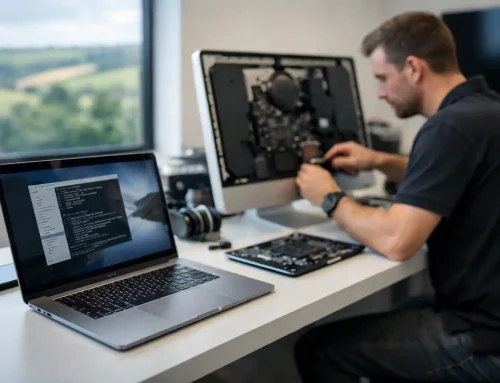


Your Mac suddenly restarts, freezes on a dark screen, or displays a message saying it restarted because of a problem. That is usually a Mac kernel panic. It can be unsettling, especially if you are in the middle of invoices, coursework, family photos or a deadline, but one panic does not automatically mean your Mac is beyond repair.
A kernel panic is macOS stopping itself because it has encountered a serious fault it cannot safely work around. Think of it as an emergency stop rather than an ordinary application crash. The cause may be a one-off software conflict, a troublesome accessory, an outdated driver or, less commonly, a hardware fault. The useful question is not simply “how do I get it switched back on?” but “what was happening just before it failed, and does it happen again?”
What a Mac kernel panic looks like
On newer Macs, you may see a message after the restart stating that your computer was restarted because of a problem. Older models can show a grey or black screen asking you to restart. Sometimes the Mac restarts so quickly that you only notice applications reopening and a report appearing on the desktop.
This is different from a single app becoming unresponsive. If Safari or Word freezes while the rest of the Mac still works, you can normally force quit that app. A kernel panic affects the operating system itself, which is why the whole machine may stop or restart.
An isolated incident after installing a macOS update, waking a laptop from sleep or connecting an unfamiliar device may never return. Repeated panics, however, deserve proper attention. They can lead to lost work and are particularly disruptive for a Dorset business relying on one Mac for email, accounts or client files.
Common causes of a Mac kernel panic
The most likely cause depends on the age of the Mac and what has changed recently. Older Intel-based Macs are more likely to be affected by third-party kernel extensions, which are low-level pieces of software often installed by security products, VPNs, printer tools, audio interfaces and older storage devices. Apple silicon Macs have stronger protections around this type of software, but incompatible utilities and peripherals can still cause problems.
External equipment is a frequent suspect. A failing USB hub, dock, hard drive, monitor adaptor, printer or even a charging cable can trigger instability. This does not mean every accessory is faulty, but it is worth noticing whether the panic only occurs when you are connected to a particular desk setup.
Software can be the issue too. An unfinished macOS update, an old version of security software, a damaged login item, or an application that has not kept pace with a newer macOS release can all contribute. A Mac with very little free storage may behave unpredictably as well, although low storage alone is not a typical direct cause of a kernel panic.
Hardware faults are less common but need ruling out when panics are regular. Failing memory in older upgradeable Macs, a deteriorating internal drive, overheating, liquid damage, a battery issue or a logic board fault can all create symptoms that look similar. This is why randomly reinstalling software is not always the right first move.
What to do straight away
If the Mac has restarted and now works normally, save any open work and make a current backup before investigating further. Time Machine is ideal where available, but the important thing is to ensure your important files exist in more than one place. If the Mac is repeatedly restarting, avoid repeatedly forcing it through the same cycle if you can get to your files another way.
Next, disconnect non-essential accessories. Leave the power cable connected, but remove external drives, hubs, printers, scanners, display adaptors and audio equipment. Restart the Mac normally and use it for a little while. If the panics stop, reconnect devices one at a time over the following days. That gives you a much clearer answer than reconnecting everything at once.
If a specific device appears to be involved, check whether its software is current and whether the manufacturer supports your version of macOS. For some older printers and specialist business equipment, the most sensible solution may be a replacement adaptor or a revised setup rather than trying to force obsolete software to work.
Avoid installing “cleaner”, antivirus or repair applications as a quick fix. Some are useful in the right circumstances, but others add background processes and can make diagnosis harder. A panic report contains technical information, yet it is not always meaningful without context. The pattern of when the Mac fails is often more valuable.
Start with the safe checks
Update macOS and key applications
Provided the Mac is stable enough to do so, install available macOS updates. Apple regularly fixes bugs affecting sleep, graphics, USB devices and security. Also update applications that work closely with hardware, including VPNs, cloud backup tools, printer software and music or video production tools.
Do not jump to the newest macOS version merely because it is available if you depend on older professional software or equipment. There can be a trade-off between gaining the latest system improvements and keeping a reliable workflow. Check compatibility first, particularly for small businesses using specialist accounting, design or engineering applications.
Check startup items
A panic that happens shortly after logging in can point to software that opens automatically. Review Login Items in System Settings and temporarily disable non-essential items, then restart. This is best done methodically. Change a small number of items, test the Mac, and make a note of what you changed.
Test in Safe Mode
Safe Mode starts macOS with a reduced set of software and performs some basic checks. The method varies between Intel Macs and Apple silicon models, so it is worth following the steps for your particular machine carefully. If the Mac is stable in Safe Mode but fails normally, that suggests a third-party item or login process may be involved.
Safe Mode is a diagnostic tool, not a permanent way to use your Mac. Some features and accessories will not behave normally while it is enabled, which is expected.
Run Apple Diagnostics
Apple Diagnostics can check for certain hardware faults. Shut down the Mac, disconnect external devices except power, then start the test using the relevant startup procedure for your Mac model. If it gives you a reference code, write it down or take a photo. The result can help identify whether a repair is likely, but a clean result does not rule out every intermittent fault.
When the problem needs hands-on help
Call for support sooner rather than later if the Mac panics several times a week, restarts before you can log in, becomes hot or noisy, shows visual glitches, or has been dropped or exposed to liquid. The same applies if the panic began after a drive failure warning, if your important data is not backed up, or if a work Mac is preventing you from trading.
A proper diagnosis should begin with protecting your data. From there, the work may involve checking panic logs, testing storage health, reviewing installed software, isolating peripherals, examining battery and power behaviour, or testing hardware. The answer could be as simple as removing an outdated utility, but it could also require a drive replacement, system repair or a more considered upgrade plan.
For households, it is often helpful to have someone explain what has happened in plain English and make sure photos, documents and iCloud settings are safe afterwards. For small businesses, the priority is usually reducing downtime while keeping email, files and customer systems available. Those are different needs, and the right fix should reflect that.
North Dorset Mac Man can investigate recurring Mac problems at home or at your workplace, with practical advice rather than a confusing list of technical codes. If your Mac has panicked once, keep an eye on it. If it has become a pattern, make a note of the timing, connected equipment and recent changes, then get it checked before the next restart catches you at the worst possible moment.