
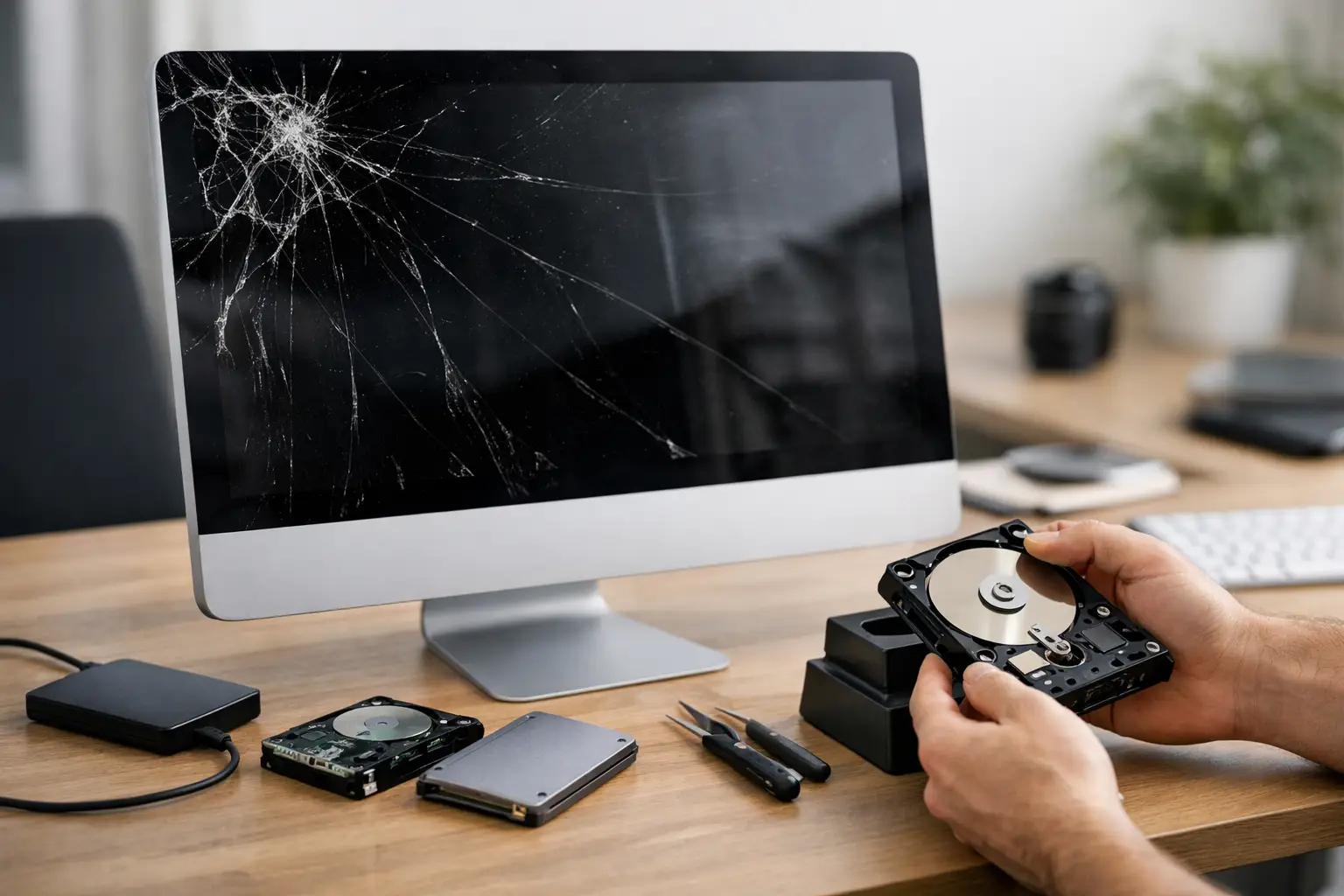
A cracked screen, an iMac that will not start, or a folder with a question mark at boot can quickly become more than a repair problem. If you need to recover files from a broken iMac, the priority is protecting the data before repeated restart attempts, reinstalls, or well-meaning fixes make matters worse. For a family, that may mean years of photos. For a Dorset business, it may be accounts, customer records, design work or the only copy of an important document.
The good news is that a failed iMac does not automatically mean its files have gone. What can be recovered, and the safest method, depends on what has actually failed: the display, macOS, the internal storage, or the iMac’s power and logic board.
First, stop doing the things that can put data at risk
It is natural to keep pressing the power button, try several passwords, or follow an online video promising a quick repair. A couple of careful attempts are understandable, but a Mac that is clicking, repeatedly switching itself off, running unusually slowly, or showing a flashing folder may have a failing drive. Continued use can turn a recoverable problem into a much harder one.
Do not erase the iMac, select “Erase Mac” in Recovery, or reinstall macOS over the top simply because it will not start normally. Reinstalling macOS can sometimes preserve personal files, but it is not a data-recovery method and is not the right first move when the condition of the storage is unknown.
If the iMac still runs, even intermittently, copy the most valuable files first to a reliable external drive. Start with current work folders, Desktop and Documents, Photos Library, email archives, financial records and anything that cannot be downloaded again. Avoid a large system update or a lengthy cleanup while the Mac is behaving unpredictably.
Work out what “broken” means
A broken iMac can look very different from one case to another. The distinction matters because the route to your files changes considerably.
The iMac powers on but the screen is damaged
If you hear the startup sound on an older model, the fan runs, or the machine appears to be working but the screen is black, dim, flickering or cracked, your data may be completely intact. Connecting a suitable external monitor is often the quickest way to confirm this. Once you can see the desktop, back up immediately before arranging screen or hardware repairs.
A black screen can also be caused by a graphics fault rather than the display itself. It is still worth treating the internal data as the priority, rather than assuming a screen replacement will solve everything.
The iMac starts but macOS will not load
A flashing folder, prohibitory symbol, endless progress bar or login screen that never finishes can point to a damaged macOS installation, a startup disk problem or failing storage. Recovery Mode may allow a technician to inspect the disk without starting the usual system.
Disk Utility’s First Aid feature can be helpful where file-system errors are minor. However, if the internal drive is making unusual noises, disappearing from Disk Utility, or reporting serious errors, repair attempts are not always the best choice. The safer approach may be to make a copy of the drive first, then work from that copy.
The iMac is completely dead
No power at all can be caused by a cable, socket, power supply, logic board or another internal fault. It does not necessarily tell us whether the storage is healthy. On many older Intel iMacs, the hard drive or SSD can be removed and read using appropriate equipment, provided the drive itself has not failed and the data is not locked by encryption.
Newer iMacs are different. On many Apple silicon models, the internal storage is integrated with the logic board. It cannot simply be taken out and connected to another Mac. Recovery may require the iMac to power on enough to use Apple’s recovery tools, or it may need specialist board-level data recovery.
Check whether you already have a usable copy
Before attempting a recovery, check the places where your files may already exist. This can save time and reduce pressure if the iMac is in poor condition.
Time Machine is the most useful place to look. If you have an external backup disk, connect it to another Mac and check for recent backups. A Time Machine backup can restore individual files, a whole user account, or an entire Mac.
Also look at iCloud Drive, iCloud Photos, Dropbox, OneDrive, Google Drive and any business storage service you use. Be careful here: synchronisation is not always the same as backup. A file deleted from the iMac may have been deleted from the cloud service too, and some folders may never have been included in the first place. Your Photos Library may also contain originals stored locally, depending on your iCloud settings.
For businesses, check whether documents were stored in a shared Microsoft 365 or Google Workspace location, rather than on the iMac itself. It is sensible to confirm what is available before changing account passwords or setting up a replacement Mac.
Ways to recover data from an Intel iMac
Many Intel iMacs provide a practical route to retrieve files without repairing every part of the machine. The best option depends on the model year and whether FileVault encryption was enabled.
Start in Target Disk Mode
Target Disk Mode allows an Intel Mac to behave like an external drive when connected to another Mac with the correct cable or adaptor. If it works, the damaged iMac’s internal disk appears in Finder on the working Mac, allowing files to be copied across.
This is often a very useful option when the iMac’s screen, graphics hardware or macOS installation is the problem. It will not help if the drive has physically failed, and you will still need the login password if FileVault is switched on.
Remove and read the internal drive
On some older iMacs, an experienced technician can remove the internal hard drive or SSD and connect it externally. This is hands-on work: iMac displays and internal cables are delicate, and the process varies substantially between models. It is not a good job to attempt with a generic online guide if the files are valuable.
If the drive is readable, copying the user folder is usually the first aim. That includes Documents, Desktop, Downloads, Pictures and the hidden Library folder, which can contain email data, application settings and other important material.
Recovering files from a broken Apple silicon iMac
Apple silicon iMacs, including 24-inch models with M-series chips, use a different approach. Their storage is built into the logic board and protected by modern security features. This is excellent for security, but it means conventional drive removal is not possible.
If the iMac can enter macOS Recovery, it may be possible to use the Share Disk feature. This makes the internal storage available to another Mac over a USB-C connection, similar in principle to Target Disk Mode. The other Mac can then access and copy files, subject to permissions and encryption.
If the iMac will not power on, cannot enter Recovery, or has suffered liquid damage or a logic-board fault, specialist assessment is usually the sensible next step. Avoid anyone who suggests they can simply remove the SSD from an Apple silicon iMac. That is not how these machines are built.
FileVault, passwords and why they matter
FileVault encrypts your Mac’s internal storage. It is a valuable security feature, particularly for business and personal information, but it means a technician cannot bypass your account password to view the files.
For recovery, keep the normal Mac login password available and, if you have one, the FileVault recovery key. Do not share passwords casually, but be prepared to enter them yourself during an in-person support visit. Without the correct credentials, even a perfectly healthy recovered drive may remain unreadable by design.
This is also why a failed iMac should not be handed to an unknown repairer without a clear explanation of what work will be carried out and how your data will be handled.
When professional recovery is the sensible choice
A damaged screen or a straightforward startup fault may be resolved at home or in the workplace. But unusual clicking sounds, burning smells, liquid damage, drives that are not detected, and Macs containing irreplaceable business records call for a more cautious response.
A local Apple specialist can establish the model, test the least invasive recovery options, check backups, and explain the likely trade-off between repair cost, recovery prospects and urgency. Where physical drive recovery is needed, it may be appropriate to refer the device to a dedicated data-recovery laboratory rather than keep trying software tools.
North Dorset Mac Man can provide practical, jargon-light help with assessing an iMac, retrieving accessible data, setting up a replacement Mac and making sure a proper backup is in place afterwards. That support can be particularly useful when one failed computer is holding up a household or a small business.
The most useful next step is often the calmest one: switch the iMac off, keep any backup drives safe, write down what happened just before it failed, and get the machine assessed before attempting a reset. Your files may be far closer than they appear.