
A slow iMac rarely fails all at once. More often, it starts with little frustrations – apps taking too long to open, the spinning beach ball appearing too often, or a machine that used to feel dependable now making everyday jobs feel harder than they should. If you are wondering how to upgrade an old iMac, the good news is that many older models can still be made far more useful with the right approach.
The key is to be realistic about what you own, what you need it to do, and whether the money is better spent on an upgrade or on replacement. For plenty of households and small businesses, an older iMac is still perfectly worth saving. For others, the smartest move is to stop before spending good money on a machine that has reached its natural limit.
How to upgrade an old iMac without wasting money
Before buying parts, identify the exact iMac model and year. This matters because some older iMacs allow straightforward RAM upgrades through a small rear hatch, while others require the screen to be removed just to reach the internals. The difference in labour is significant.
You can usually find the model year by clicking the Apple menu and choosing About This Mac. If the machine will not boot properly, the serial number on the underside of the stand can also help identify it. Once you know the model, you can make a sensible plan.
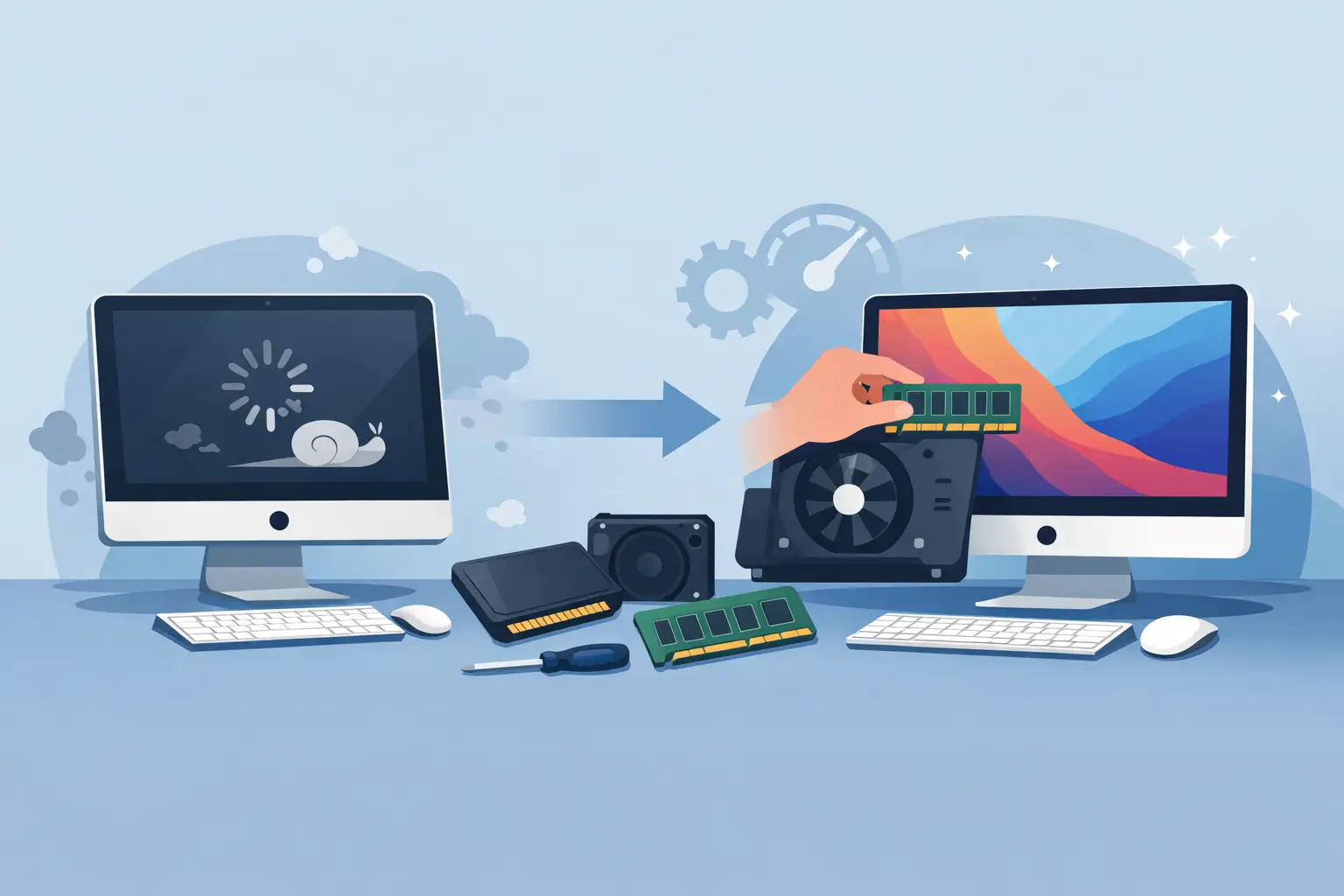
For most older iMacs, the upgrades that make the biggest real-world difference are storage and memory. A traditional hard drive is often the main reason an iMac feels painfully slow. Replacing it with a solid-state drive can transform startup time, app launching, and general responsiveness. Extra RAM can also help, especially if you regularly keep several apps or browser tabs open.
Not every iMac is worth opening. If the display is failing, the graphics chip is unreliable, or the machine is stuck on a very old version of macOS that no longer supports the software you need, an upgrade may only buy a little time. That can still be useful, but it is better to go in with open eyes.
Start with the upgrade that matters most
Swapping the hard drive for an SSD
If your iMac still uses a mechanical hard drive, this is usually the most effective upgrade by far. Older hard drives become slower over time, and some are close to failure long before they stop working completely. That is why an iMac may freeze, take ages to log in, or struggle during simple tasks such as opening Photos or Safari.
An SSD has no moving parts and works much faster. On many machines, it can make an old iMac feel years younger. Even users who only use email, documents, web browsing, and family photos usually notice the improvement immediately.
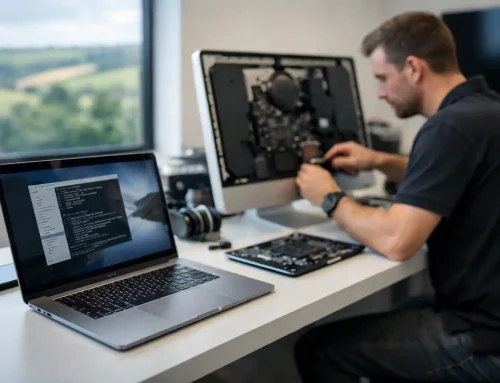
There is a trade-off, though. On some iMacs, fitting an internal SSD is not a quick DIY task. The glass and display may need to be carefully removed, adhesive strips replaced, and temperature sensor issues dealt with properly. Done badly, the repair can lead to dust behind the screen, fan problems, or accidental damage to the display.
If the iMac is too awkward or costly to open, an external SSD can sometimes be a practical halfway step. Booting from an external drive is not as tidy as an internal upgrade, but it can still provide a worthwhile speed boost for certain models.
Adding more RAM
RAM helps your iMac handle multiple jobs at once. If you often have Mail open, several websites running, a spreadsheet in use, and perhaps Photos or Zoom at the same time, extra memory can reduce slowdowns.
That said, RAM is not always the main culprit. If the iMac has a slow failing hard drive, adding memory alone may do very little. This is where people sometimes spend money in the wrong order. Storage first, RAM second is often the sensible route.
Some 27-inch iMac models make RAM upgrades pleasantly simple. Others do not. If your machine already has a decent amount of memory for its age, the return may be modest. It depends on how you use it.
macOS limits matter more than many people realise
A common mistake when deciding how to upgrade an old iMac is focusing only on hardware. The software side matters just as much. Apple sets model limits on the newest version of macOS each iMac can run, and that affects security, app compatibility, and online services.
For home users, this might mean newer versions of browsers, Office apps, or photo software eventually stop being supported. For business users, it can become a bigger issue. If you rely on secure websites, cloud platforms, Microsoft 365, or modern accounting tools, an old operating system can create headaches even if the machine itself still starts up fine.
There are unofficial ways to install newer macOS versions on unsupported Macs, but they are not always suitable for everyone. They can work well in the right hands, yet they may introduce quirks, update problems, or compatibility issues. For a family machine or a small business computer you depend on daily, reliability often matters more than squeezing out one extra year through a workaround.
Other upgrades that may help
Replacing a failing hard drive before it dies
Sometimes the goal is not speed alone. It is avoiding data loss. If an ageing hard drive is making clicking noises, causing frequent crashes, or showing warning signs in health checks, replacing it early can save a lot of stress.
Cleaning and servicing the inside
Dust build-up inside an old iMac can cause heat problems, loud fans, and sluggish performance. A proper internal clean, along with fresh thermal paste in some cases, can improve stability. This is more of a maintenance job than an upgrade, but on older machines it can make a noticeable difference.
Using the iMac in a lighter role
Not every older iMac needs to remain the main family or office computer. Sometimes a sensible upgrade turns it into a dedicated machine for admin tasks, music, recipes, printing, stock control, or children’s homework. In that role, even an older system can still offer good value.
When an upgrade is probably not worth it
There are times when the honest answer is no. If an iMac has major graphics issues, repeated shutdowns, liquid damage, or a display fault on top of a slow drive, costs can stack up quickly. The same goes for machines that are so old they cannot run the websites or software you need for normal life or work.
Screen size and age also matter. Some older 21.5-inch models are less upgrade-friendly than 27-inch versions, which means labour can make the job less attractive financially. If the total cost of parts and fitting approaches the value of a newer replacement Mac, it may be better to stop and rethink.
That does not always mean replacing it immediately with the newest machine available. Sometimes a carefully chosen refurbished Mac is the better answer than pouring money into a model that is already several steps behind.
A sensible checklist before you decide
Before spending anything, think about what you actually want from the iMac over the next year or two. If you need it for email, web browsing, schoolwork, photos and basic office tasks, an SSD upgrade can often be enough. If you expect modern creative software, heavier business workloads, or years of future macOS support, the calculation changes.
Make sure your data is backed up before any work starts. This is non-negotiable. Any internal upgrade carries some risk, and an old drive can fail during the process simply because it was already weak.
It is also worth checking for the simple fixes first. A machine can feel old because the startup disk is nearly full, login items are bloated, the desktop is overloaded, or the system has software issues rather than hardware faults. Sometimes a proper tidy-up and health check reveals that the iMac does not need as much spending as feared.
Getting help with an old iMac
Older Apple machines can be surprisingly good value when they are upgraded properly, but they can also be fiddly, fragile and easy to misdiagnose. That is especially true if you are dealing with irreplaceable family photos or a business machine that cannot afford downtime.
For many people, the best route is not guessing with online parts and hoping for the best. It is having someone assess the iMac, explain the realistic options in plain English, and tell you honestly whether the machine deserves the investment. That is often where local, hands-on support makes all the difference, particularly if you want the work done at home or in the workplace with proper backup advice alongside it.
An old iMac does not need to be cutting-edge to be useful. It just needs to be reliable enough for the job you ask of it, and upgraded with care rather than optimism.