
A slow or unreliable connection is frustrating. A connection that a neighbour, stranger or compromised device can use is a much bigger problem. This guide to secure home wifi focuses on the sensible checks that make a real difference without turning your home into an IT project. Whether you use a Mac, iPhone, iPad, smart TV or a mix of family devices, the aim is simple: keep your connection private, dependable and manageable.
Home WiFi is often set up once, usually when the broadband goes live, and then forgotten. That can leave the router using an old password, outdated security settings or the manufacturer’s default administrator details. A few careful changes can protect personal photos, banking sessions, work files and the devices that rely on your network every day.
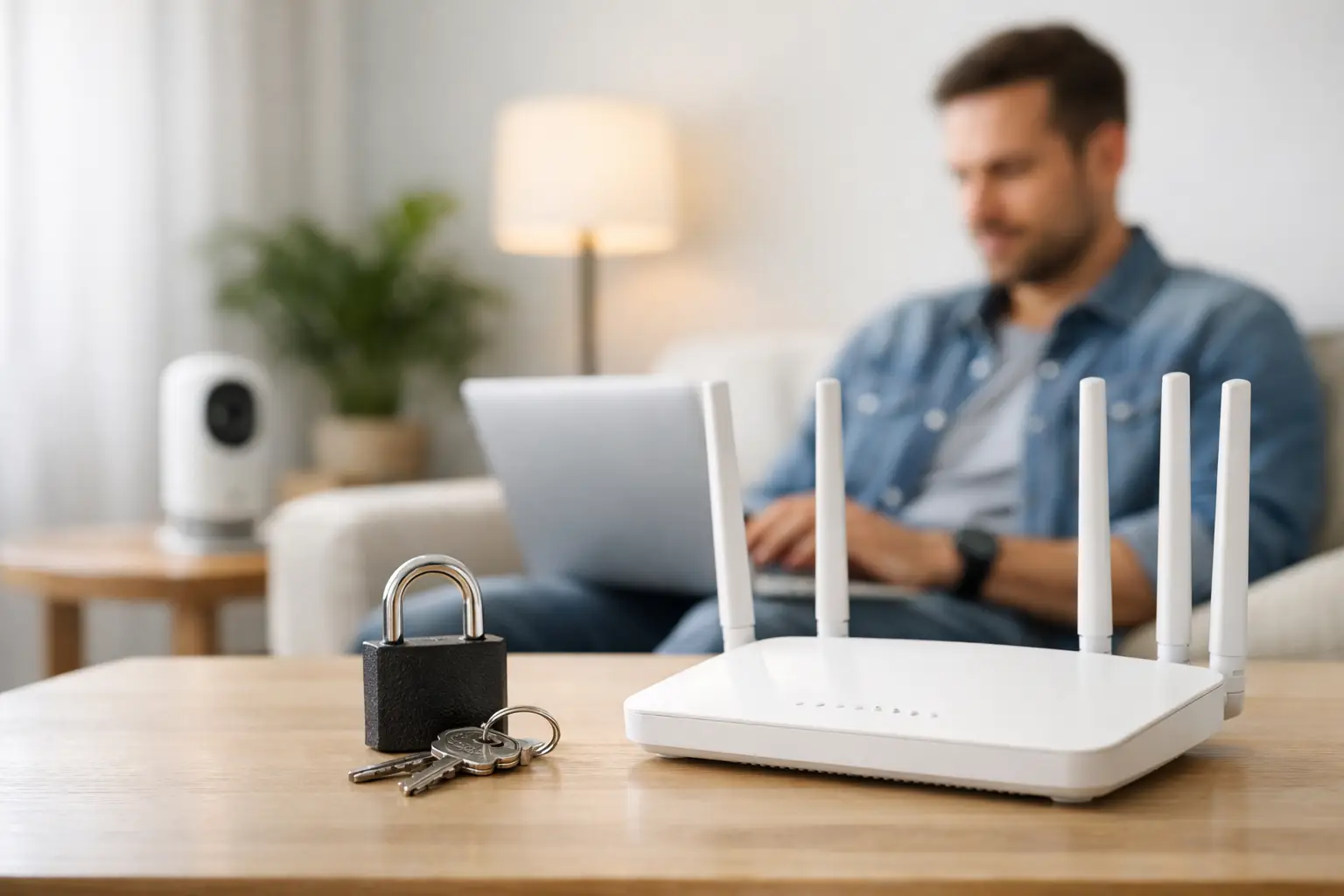
A guide to secure home WiFi: start with the router
Your router is the front door to your home network. It may be supplied by your broadband provider, or it may be a separate unit attached to the provider’s modem. Either way, it needs two different passwords: one for joining the WiFi and another for administering the router itself. They should not be the same.
First, find the router’s settings page or app. The address and original login details are often printed on a label underneath the router, although many newer systems guide you through an app. Change the administrator password from the default straight away. Default details are widely known and can make an otherwise secure setup needlessly vulnerable.
Then review the wireless security setting. Choose WPA3 Personal if all your devices support it. WPA2 Personal with AES encryption remains a sensible option for older devices, and many routers offer a WPA2/WPA3 mixed mode. Avoid WEP, WPA and any setting described as “open”. They are outdated and should not be used for a home network.
A secure WiFi password does not need to be impossible to remember, but it must be hard to guess. A long passphrase made from several unrelated words is usually better than a short, complicated-looking password. For example, a private phrase of four or five random words with numbers or punctuation is easier to type into an iPad and much harder to crack than a pet’s name followed by a birthday. Do not use your address, surname, children’s names or anything visible on social media.
While you are in the router settings, work through these essentials:
- Install any available router firmware updates. These often fix security faults as well as improving stability.
- Turn off remote administration unless you have a clear reason to use it and know how it is protected.
- Disable WPS, the push-button or PIN method for joining devices, if the option is available.
- Check that the router’s built-in firewall is enabled.
- Save a record of the new administrator password somewhere secure, such as a trusted password manager.
The name of your network, known as the SSID, does not have to reveal anything personal. “TheSmithFamilyWiFi” tells a stranger more than “OakNet” or another neutral name. Hiding the network name is sometimes suggested as a security measure, but it offers very little real protection and can make connecting legitimate devices awkward. A strong password and modern encryption matter far more.
Keep guest devices separate from your own
Visitors may need WiFi, but they do not need access to your printer, shared Mac folders, backup drive or smart home equipment. Most modern routers have a guest network option. This creates a separate WiFi name and password for visitors, tradespeople or occasional users.
Set a guest password that you can change easily after a large gathering or if you have shared it more widely than intended. If the router provides an option to prevent guest devices from seeing each other or accessing your local network, switch it on. This is especially useful in a home office where client information, shared storage or business equipment may be connected.
The same principle applies to smart devices. Doorbells, cameras, speakers, plugs and televisions can be useful, but cheaper or older models may not receive updates for long. If your router supports a separate network for Internet of Things devices, it is worth using. Keeping these devices apart from the Mac that holds your documents or the iPhone used for banking limits the impact if one of them is compromised.
Check every device that has access
Open the router’s connected-device list every few months. The names may not always be helpful, but you should be able to recognise roughly what is connected: your MacBook, phones, tablets, television, printer, games console and smart devices. An unfamiliar device deserves a closer look.
Before assuming the worst, remember that Apple devices can use private WiFi addresses, so they may appear with unfamiliar hardware details. A printer or smart plug may also show up under a manufacturer name rather than the name you gave it. If you cannot identify a device after checking, change the WiFi password and reconnect only the devices you trust. It is a little inconvenient, but it quickly removes unauthorised access.
Use the same care with old equipment. An unused tablet, an abandoned baby monitor or a former tenant’s streaming stick should not remain connected simply because nobody has thought about it. Remove or reset devices you no longer use, and keep software updated on the ones you do.
For Apple households, install current versions of macOS, iOS and iPadOS when practical. Security updates close weaknesses that can affect devices even when the WiFi itself is well configured. On a Mac, make sure the firewall is enabled and File Sharing is switched off unless you actively use it. If you do share files between Macs, set access permissions carefully rather than allowing every user on the network to browse them.
Protect home working without making life difficult
For many Dorset households, the home network now carries both family life and paid work. It may handle video calls, cloud accounting, customer emails, online appointments and confidential files. That does not mean you need enterprise-level equipment, but it does mean the basics deserve attention.
Use separate logins for each person on a shared Mac, particularly where work documents are involved. Enable two-factor authentication on email, cloud storage and business accounts. WiFi security protects the route into your network, but it cannot prevent a stolen password being used to sign in elsewhere.
If you regularly handle sensitive client information, consider using a separate work network or wired Ethernet connection for your main computer. A cable is not glamorous, but it is reliable and removes that device from wireless interference. It depends on the layout of your property and the equipment you use, of course. For many people, a properly secured WiFi connection is entirely suitable.
Be cautious with public WiFi too. Your secure home setup does not follow you to a café, hotel or shared workspace. Avoid accessing sensitive accounts on unknown networks where possible, and use your mobile data connection for anything particularly private. At home, never assume that a familiar-looking WiFi name is genuine if it suddenly appears after your usual network has dropped out. Check the router before joining a network that looks similar but is not quite right.
Improve coverage without weakening security
Poor coverage often persuades people to add a cheap extender or use an old router with unknown settings. This can create a weak point in the network. If you need better coverage, choose a reputable mesh system or access point that supports WPA2 or WPA3 and receives regular updates.
Place the main router in an open, central position where possible, rather than inside a cupboard or behind the television. Thick stone walls, foil-backed insulation and larger Dorset properties can all reduce signal strength. A mesh system may be more effective than one powerful router, but it should be configured with the same care: unique administrator password, current firmware and a strong WiFi passphrase.
Do not chase security settings that promise more than they deliver. Filtering devices by MAC address, hiding the network name and constantly changing the WiFi password can create extra work without providing the protection of modern encryption, updates and sensible account security. Focus first on the measures that genuinely reduce risk.
If the router settings feel confusing, or you are not sure whether an unfamiliar device belongs on the network, asking for help is far better than leaving it unresolved. North Dorset Mac Man can check a home or small-business setup in plain English, including the wider Apple devices that depend on it. A secure connection should quietly support your day, not become another thing to worry about.