
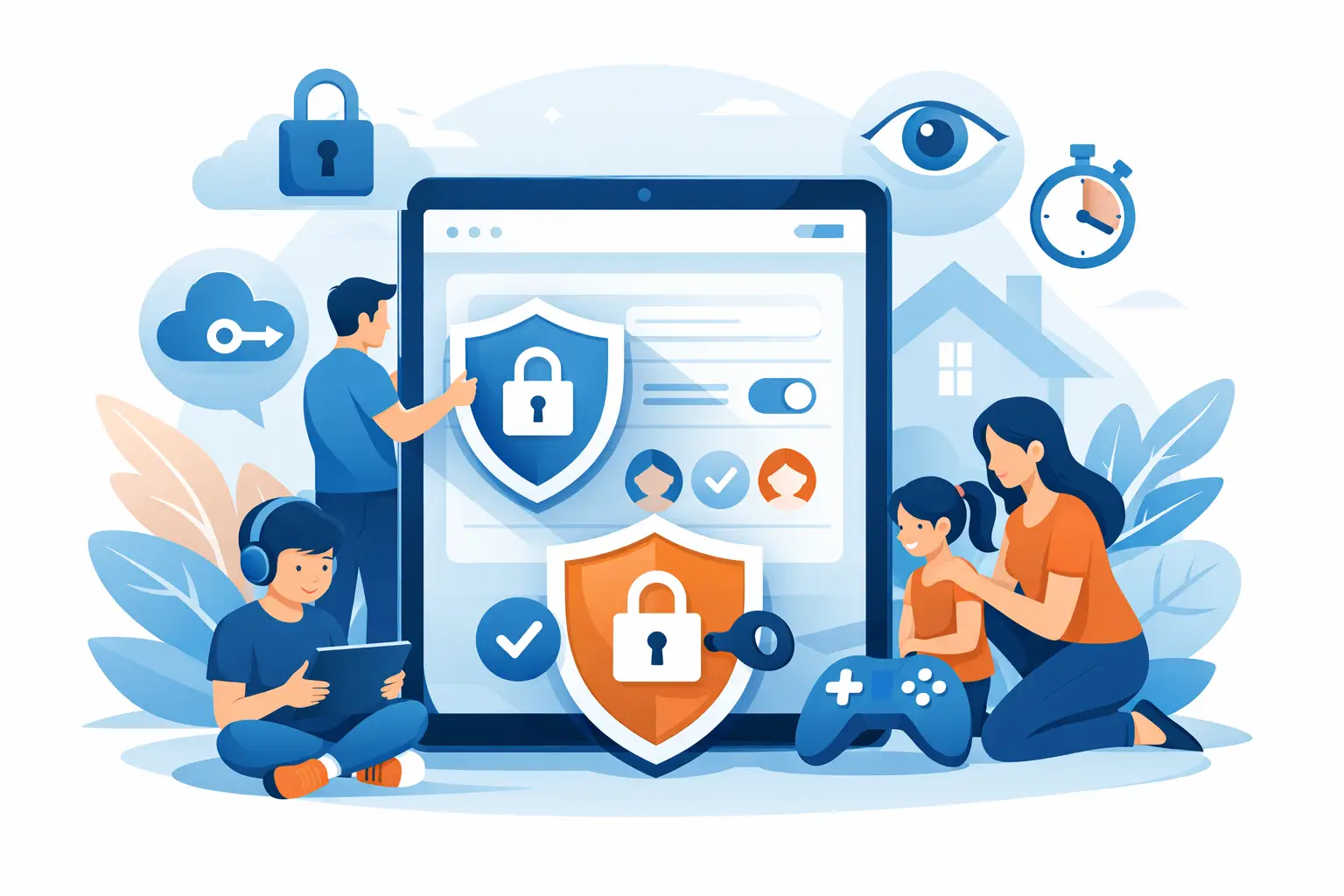
A family iPad can go from cartoon machine to homework tool to online shopping screen in a single afternoon. That convenience is exactly why it needs setting up properly. If you are wondering how to secure family iPad use without turning it into a nuisance, the aim is simple – make it safe for children and guests, while keeping everyday use easy for the adults who manage it.
Start with the way the iPad is actually used
Before changing settings, think about who uses the device and for what. A shared iPad used by younger children needs a tighter setup than one used mostly by adults with the odd bit of YouTube for grandchildren. Likewise, an iPad that leaves the house for school runs, holidays or visits to relatives needs stronger protection than one that never leaves the kitchen table.
This matters because there is no perfect single setup. Too many restrictions and family members start asking for passcodes every five minutes. Too few and you may end up with accidental purchases, deleted photos, changed settings or private messages appearing in the wrong hands.
How to secure family iPad access from the lock screen
The first layer is the simplest one – stop the wrong person getting in easily. Set a proper passcode rather than a very obvious four-digit number. If Face ID or Touch ID is available on your model, use it, but keep the passcode strong as well because the passcode is still the fallback.
Six digits is better than four, and a custom alphanumeric code is better still if the iPad is used for banking, work email or sensitive family information. For many households, a six-digit code hits the right balance between security and practicality.
Then review what is available from the lock screen. In Settings, look at Face ID and Passcode or Touch ID and Passcode and consider switching off features such as Control Centre, Siri, Reply with Message and Wallet access while locked. These can be convenient, but they also give anyone holding the iPad a little more access than you may realise.
If children use the device, it is worth turning on the option to erase data after repeated failed passcode attempts only if you are confident the iPad is backed up properly. Otherwise, a determined toddler could create a much longer evening than you planned.
Use Apple IDs carefully on a shared family device
One of the biggest mistakes on a family iPad is mixing everybody into one Apple ID. It often seems easier at first, then becomes awkward when messages, photos, notes, contacts and purchases all blur together.
For most families, the best route is to keep one adult Apple ID signed in for the main device management and use Apple Family Sharing so each person has their own account where appropriate. That way, purchases can still be shared, but personal data is less likely to overlap. It also makes parental controls much easier to manage.
If the iPad is mainly for a child, think carefully before signing into an adult’s full personal iCloud account. You may be handing over access to far more than apps and films. Emails, Safari tabs, photos, passwords and backups can all become visible depending on how the device is configured.
Set up Screen Time properly, not just quickly
If you want practical control over a shared device, Screen Time is where most of the real work happens. This is the part many people switch on in a rush, only to find it either does very little or causes frustration.
Under Screen Time, set a dedicated passcode that children do not know. Avoid reusing the iPad unlock code. If the same code opens everything, restrictions tend to collapse the moment a child watches you type it in once.
Content and privacy restrictions
This section lets you control app installs, app deletions, in-app purchases, explicit music, web content and more. For younger children, restricting app installation and deletion is very useful. It prevents games being added without permission and stops favourite apps being accidentally removed.
Web content filtering can also help, though it is not foolproof. It works best as part of a wider setup rather than your only line of defence. Older children may find some filters restrictive for homework or legitimate browsing, so this is one of those areas where it depends on age and trust.
Downtime and app limits
Downtime is helpful if the iPad tends to appear at bedtime or during school hours. App limits can curb endless use of games or video apps, but they work best when the rules are realistic. If you set limits that are far too strict, the household simply ends up negotiating extensions all evening.
Communication safety and purchase controls
For families, communication settings deserve attention. You may want to limit who children can contact during allowed screen time. Also turn off unauthorised purchases and require approval for spending. A few minutes here can save you from mystery subscriptions and expensive taps in games.
Check privacy settings app by app
A secure iPad is not only about stopping strangers. It is also about making sure apps are not collecting more than they need. Open Privacy and Security in Settings and review access to Photos, Microphone, Camera, Contacts, Bluetooth, Location Services and Tracking.
If a torch app wants location access, that is a clue something is off. Many households tap Allow without a second thought, and over time the iPad becomes full of apps with far broader access than necessary.
For a family device, photo access is especially worth checking. Some apps only need selected photos rather than the whole library. That small change protects private family images and documents from being exposed more widely than intended.
Keep purchases and passwords under control
Shared iPads often become messy because passwords are saved everywhere and payment methods are left wide open. If Safari AutoFill is storing passwords, make sure the adults who manage the iPad understand what is available there. A child borrowing the device for a game does not need easy access to saved account logins.
If you use Apple Pay or have cards attached to the Apple ID, review whether that is sensible on a heavily shared device. In some homes it is fine. In others, especially where younger children use the iPad freely, it is better to remove unnecessary payment methods or tighten purchase approval.
It is also worth checking subscription settings every so often. Family iPads have a habit of collecting trial apps that quietly become paid ones later on.
Updates matter more than most people think
A lot of people treat updates as an inconvenience, especially if the iPad still seems to be working. The trouble is that updates often fix security weaknesses as well as bugs. If you leave an iPad months behind, you are relying on old software to protect current family data.
Turn on automatic updates where possible, but keep an eye on storage space. An iPad with almost no free space may fail to update properly. If the device is older, updates can occasionally affect performance, so it is reasonable to check compatibility and make a backup first. Even so, running very old iPadOS versions is usually the greater risk.
Make backups part of the security plan
People often separate security from backup, but they belong together. If an iPad is lost, damaged, disabled by too many passcode attempts or simply starts misbehaving after a failed update, a good backup is what prevents panic.
Use iCloud Backup if it suits your household, or make regular computer backups if you prefer a more hands-on approach. The important bit is not which method you choose. It is knowing that the family photos, school apps, notes and settings can be restored without starting from scratch.
Think about physical security as well
Some risks are far less technical. An iPad left in the car, taken to a café, or handed around at a party is a very different proposition from one used only at home. Turn on Find My so you can locate the device if it goes missing. Make sure activation lock is tied to the correct Apple ID, otherwise recovering or replacing the device becomes more awkward than it should be.
A decent case helps too. That is not glamorous advice, but cracked screens are one of the most common family iPad problems, and once a screen is damaged, security can suffer as well if the device becomes unreliable or difficult to unlock properly.
When a family setup needs a bit more thought
There are situations where the standard advice needs adjusting. Teenagers often need fewer restrictions but better conversations about privacy, passwords and scams. Older relatives may need a simpler setup with clearer icons, fewer prompts and a written note of the essentials. Families mixing school use, personal use and a parent’s work email on one device should be especially careful, because convenience can quickly blur into risk.
If the iPad is carrying business accounts, medical information or important client messages, treat it less like a casual household tablet and more like a work device. That usually means stronger passcodes, fewer shared logins and a stricter approach to apps and data access.
For many homes, learning how to secure family iPad settings is not about creating a fortress. It is about making sensible choices so the device stays helpful, safe and easy to live with. A well-set-up iPad should feel calm and predictable – and if your family setup has become muddled over time, a patient pair of local Apple-savvy hands can often sort it much faster than another evening spent hunting through menus.