
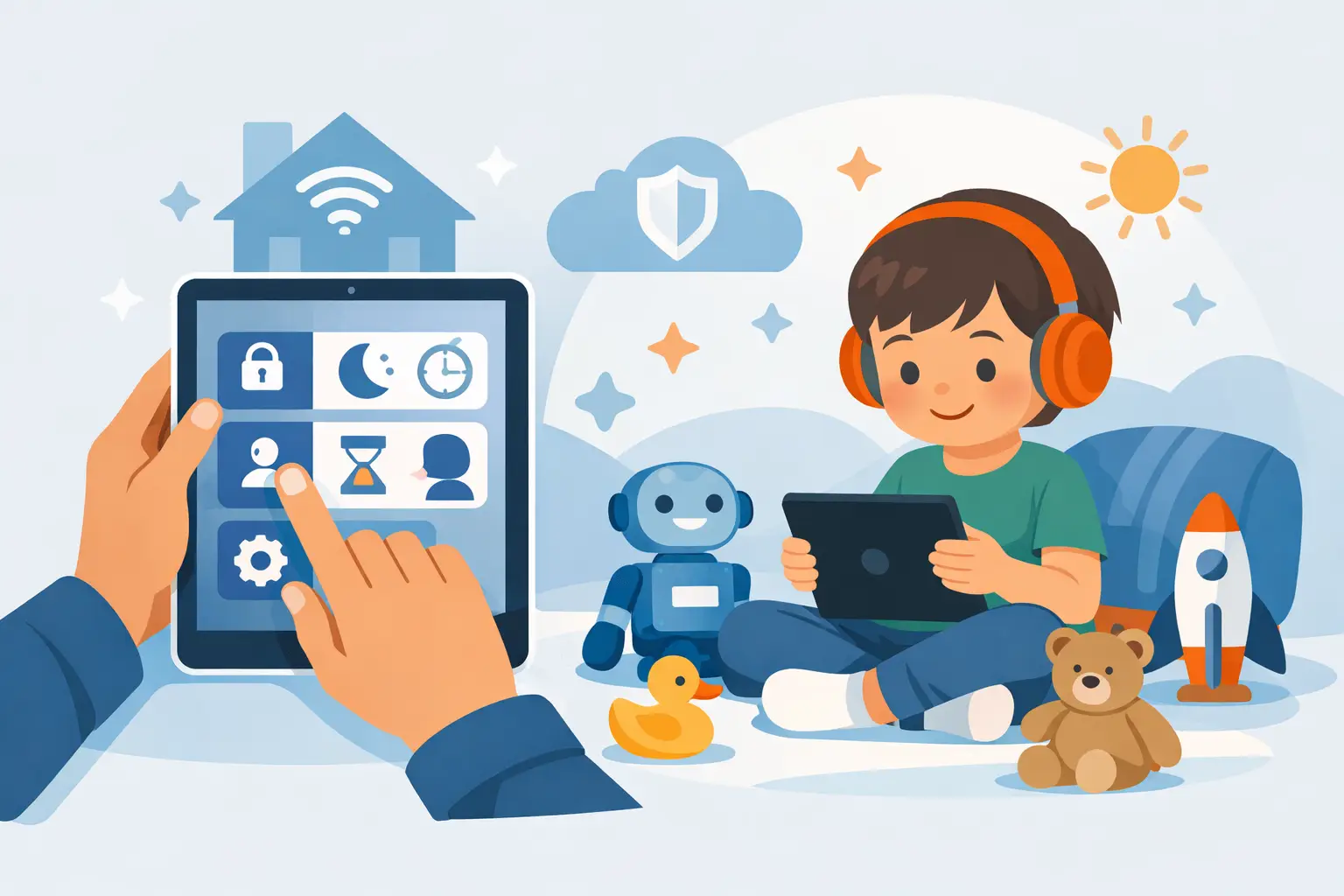
Handing a child an iPad without setting it up first is a bit like giving them a bike with no helmet and no brakes check. It might be fine for a while, but problems usually show up later – too much screen time, accidental purchases, unsuitable videos, messages from people they should not be talking to, or simply a device that ends up tied to the wrong Apple ID. A sensible iPad setup for children helps avoid all of that from the start.
The good news is that Apple gives parents some very useful tools. The less good news is that the menus are not always as clear as they should be, and one wrong decision at the beginning can make family device management much harder later on. If you want the iPad to be safe, practical and not a constant source of arguments, it pays to set it up carefully.
Start with the right Apple ID choice
This is where many families get stuck. The biggest mistake is letting a child use a parent’s Apple ID on the iPad. It may seem quicker, especially if you just want to download a few apps and get going, but it often creates a mess later. Photos mix together, messages can appear on the wrong device, FaceTime becomes confusing, and changing things afterwards is more awkward than it should be.
If your child is old enough to have their own device for regular use, it is usually better to create a child account within Family Sharing. That gives them their own Apple ID while still allowing a parent to manage purchases, screen time and content restrictions. It also means the iPad feels like theirs without losing parental oversight.
For very young children who only use the iPad occasionally at home, some families prefer a shared family device instead. That can work well, but it depends on how it is being used. If the iPad is mainly for supervised games, educational apps and a bit of CBeebies, a shared setup may be perfectly reasonable. If the child is using it daily, taking it out and about, or using school apps, a child account is the cleaner option.
iPad setup for children and Family Sharing
Family Sharing is the backbone of a good setup. Once it is enabled, a parent can approve downloads, share subscriptions, locate devices and manage screen time settings remotely. It is one of the most useful parts of the Apple ecosystem for families, but only if it is configured properly.
When setting this up, make sure the adult organiser is the right person in the household. In some homes that is obvious. In others, one parent may be more likely to deal with app approvals, password resets and device issues. Choose the person who will actually manage it, not just the person who happens to be nearest the iPad at the time.
Purchase approval is especially worth enabling. That stops children installing apps or making in-app purchases without permission. Even free apps can be worth approving manually, simply because many free games are full of adverts, chat features or nudges towards spending money.
Screen Time is useful, but it needs thought
Screen Time can be brilliant or irritating, depending on how realistically it is set. If the rules are too strict, children quickly see it as something to get around. If the rules are too loose, parents end up wondering why they bothered.
Start by thinking about what the iPad is actually for. A child who uses it for reading, homework and one or two games needs a different setup from a child who mainly watches videos. Downtime, app limits and communication limits can all be adjusted, so it makes sense to match them to real life rather than choosing random numbers.
For younger children, I would usually suggest a fairly simple structure. Limit entertainment apps, allow educational ones more freely, and make sure downtime switches on well before bed. For older children, especially those using school platforms or messaging approved family members, the settings may need more flexibility.
Do not forget the Screen Time passcode. It should be different from the iPad unlock code, and it should be kept by the adult. If the child knows both, the whole system becomes largely pointless.
Content and privacy settings matter more than parents expect
A lot of parents focus on time limits first, but content restrictions are just as important. Under Content & Privacy Restrictions, you can control web content, apps, films, TV programmes, explicit music, multiplayer games and more. This is where you reduce the chance of a child stumbling across things they should not be seeing.
The web content filter is worth switching on, especially for younger children. It is not perfect, because no automatic filter is, but it does cut down a great deal of the obvious nonsense. You can also allow only approved websites if the iPad is for a very young child.
Privacy settings deserve attention too. Many apps ask for access to the camera, microphone, photos, contacts or location when they do not really need it. That does not always mean anything sinister, but it is better to be cautious. If a drawing app wants the microphone, stop and ask why. If a game wants contacts access, the answer is usually no.
Decide which apps stay and which ones go
One of the best things you can do in an iPad setup for children is keep the home screen tidy. Too many apps create clutter, distraction and temptation. A smaller number of well-chosen apps is usually better than pages of downloads that nobody uses.
Think in categories. A few trusted educational apps, a few creative ones, perhaps one or two games, a reading app and any school-related tools. That is often enough. If every spare minute is filled with fast, noisy reward-based games, the iPad can become much harder to manage.
It is also sensible to review built-in apps. You may not want Safari, the App Store, Podcasts or certain messaging features available without restriction, depending on the child’s age. Apple allows some of these to be limited through Screen Time rather than removed entirely, which is usually the better approach.
Keep purchases, passwords and payments under control
Nothing frustrates parents faster than surprise charges. In-app purchases are one of the main culprits, especially in children’s games. Even when children are not trying to spend money, many apps are designed to prompt taps at exactly the wrong moment.
Turn off in-app purchases if you do not want the risk. Require approval for downloads. Avoid storing payment details in a way that makes buying too easy on a child’s device. If the iPad is used by more than one child, this matters even more.
Passwords are another common weak spot. If a child is old enough to know their device passcode, choose one they can remember but not one that every sibling, cousin and school friend already knows. For younger children, parents may prefer to keep the unlock process in adult hands, especially if the iPad is not for independent use.
Location, communication and online safety
If the iPad leaves the house, turn on Find My. It helps if the device is lost, and it gives a bit more peace of mind if the child is carrying it to school clubs or between households. A sturdy case is also a wise investment. The safest software setup in the world will not protect an iPad dropped face-down on a kitchen floor.
Communication settings need the same practical approach. Some children need FaceTime access for grandparents or separated family arrangements. Others do not need messaging features at all. Apple lets parents limit who children can communicate with during allowed time and downtime, which can be very helpful.
That said, no setting replaces conversation. Children should know not to reply to strangers, not to share personal details, and to tell an adult if something feels odd. The iPad should not be presented as magically safe simply because restrictions are switched on.
A few setup choices that save trouble later
Automatic updates are usually worth leaving on, as they help with security and bug fixes. Backups to iCloud are sensible too, particularly if the iPad contains schoolwork, photos or favourite apps that would be a pain to rebuild from scratch.
It is also worth checking notifications. Constant pings from games and video apps can make children reach for the device far more often. Turning most of them off creates a calmer experience and reduces those little battles over one more look.
If the whole thing starts to feel more complicated than expected, you are not imagining it. Family Apple setups can become surprisingly fiddly, especially where there are several devices, mixed ages, shared subscriptions and existing Apple IDs involved. This is exactly the sort of thing that benefits from patient, local help rather than guesswork.
A well-planned iPad for a child should feel safe, manageable and useful, not like a full-time job for the adults. Get the basics right at the start, and the device becomes far easier to live with as your child grows.