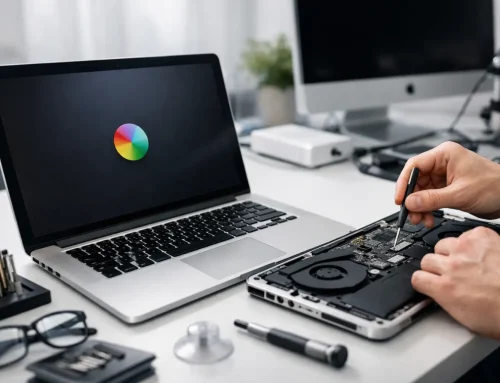


That little rainbow wheel is easy to dismiss once or twice. When it appears every time you open Mail, search Finder, edit a document or switch between accounts, it is your Mac telling you that something is struggling. The good news is that you can often fix Mac spinning wheel problems without risking your files or making a complicated repair.
The wheel means an app, or occasionally macOS itself, has stopped responding quickly enough. It may catch up after a few seconds. If it does not, the cause could be a single troublesome app, a nearly full drive, an overloaded browser, a failing external device, or a background task that needs attention. Start with the least disruptive checks first.
First, work out whether it is one app or the whole Mac
If the wheel only appears in one application, such as Word, Photos or Safari, the Mac itself may be fine. Try opening another app or clicking the desktop. If everything else works normally, concentrate on the affected program and the file you were using.
If the entire screen is slow, the pointer keeps turning into a wheel, and even Finder will not respond, the issue is wider. Give the Mac a minute or two before doing anything drastic. A large photo library, cloud sync, software update or first start-up after a long period switched off can temporarily use a lot of processing power.
For a business Mac, also consider what has changed that day. A new Microsoft 365 update, a large shared folder syncing, a new printer driver or security software can all be relevant. Knowing when the behaviour began makes the eventual fix much quicker.
How to fix Mac spinning wheel issues safely
Save work if you still can
If the app responds intermittently, save the current document straight away. You might be able to use Command-S, even while the cursor is showing the wheel. Avoid repeatedly clicking buttons or opening the same app again and again. That can queue up more jobs for a Mac that is already busy.
If you cannot save but the app has stopped responding, macOS may recover it. Wait briefly before force quitting, particularly if it is handling a large video, spreadsheet or photo export. Force quitting stops the app immediately and can lose unsaved changes.
Force quit only the frozen application
Press Option, Command and Escape together to open the Force Quit Applications window. Select the application marked “Not Responding”, then choose Force Quit. This is usually safer than restarting the whole Mac because it leaves your other applications open.
When you reopen the program, do not immediately reopen every previous window if it offers the option. Test it with a small, simple file first. If the wheel returns only with one document, that document may be damaged, too large, or relying on a missing network or cloud file.
Restart the Mac properly
A restart clears temporary processes that can become stuck. Choose Apple menu, Restart, and untick “Reopen windows when logging back in” if you have a lot of applications open. This prevents the Mac from trying to launch the same troublesome collection of apps at once.
If the screen is completely frozen, hold down the power button until the Mac turns off. Wait ten seconds, then turn it back on. This should be a last resort rather than a daily routine, as it can interrupt file saving or updates in progress.
Check the simple causes that create big delays
Make space on the internal drive
A Mac needs working room on its internal storage for updates, virtual memory and temporary files. When the drive is almost full, spinning wheels, slow start-up and apps refusing to open are common.
Choose Apple menu, System Settings, General, Storage. On older versions of macOS, choose About This Mac, Storage, then Manage. Look at the available space rather than just the colourful category chart. As a practical rule, aim to keep at least 15 to 20 per cent of the internal drive free, especially on a smaller 128GB or 256GB Mac.
Do not rush to delete files you may need. Old iPhone backups, duplicated downloads, unwanted installers and large video files are often sensible places to start. Photos and documents should be checked carefully, and a backup should come before any major clear-out.
Close demanding browser tabs and background apps
Browsers can use surprising amounts of memory, particularly with video calls, online bookkeeping, social media, design tools and dozens of tabs left open. Close the tabs you no longer need, then quit and reopen the browser.
Open Activity Monitor from Applications, Utilities to see what is using the CPU and Memory. You do not need to understand every item listed. Look for an app you recognise that is consistently at the top of the CPU list or using an unusually large amount of memory. Quit that app normally if possible. Force quit it only if it will not close.
Be careful with unfamiliar background processes. Stopping a system process at random can create a new problem. If Activity Monitor looks confusing, take a photo of the screen or make a note of the app name before seeking help.
Disconnect recent accessories
A faulty USB hub, external drive, printer or network adapter can make a Mac appear to freeze, particularly when Finder is trying to read it. Disconnect non-essential accessories, restart the Mac, and then reconnect them one at a time.
External drives deserve extra care. If one contains important work or family photos, do not repeatedly unplug it while files are being copied. A drive that disconnects, clicks, becomes very slow or makes Finder hang may need prompt data recovery attention rather than more testing.
Check what starts when you log in
Too many login items can turn a quick start-up into several minutes of spinning wheels. In System Settings, go to General, Login Items. Review the applications set to open automatically and remove ones you no longer use. You can add them back later if necessary.
This is also a useful place to spot old printer utilities, meeting software, cloud storage tools or security products left behind after changes to your setup. Keep items you genuinely depend on, but question anything you do not recognise. Do not remove security or backup software unless you are sure what it does.
Update carefully, not blindly
An outdated app can conflict with a newer version of macOS, while an older Mac may not suit the newest operating system. Check for macOS updates in System Settings, General, Software Update, and update key applications through the App Store or their own update option.
There is a trade-off here. Updates often fix known bugs, but it is wise to make sure your backup is current before installing a major macOS upgrade. Small businesses should also check that essential software, printers and specialist systems remain compatible before updating every machine at once.
When the spinning wheel points to a deeper fault
If the issue returns after a restart, happens in several apps, or gets steadily worse, it may be more than everyday clutter. Warning signs include a Mac taking a long time to start, repeated unexpected restarts, files taking ages to save, a drive that disappears, or the wheel appearing even when nothing is open.
On an Intel Mac, starting in Safe Mode can help show whether login items or third-party software are involved. Apple silicon Macs use a different start-up method, so it is worth following the instructions that match your model. Safe Mode is a diagnostic step, not a permanent working environment.
Disk problems, failing storage, insufficient memory on an older machine, overheating and problematic user profiles all need a more measured diagnosis. Avoid installing several “Mac cleaner” apps in response to a spinning wheel. They can add background tasks, remove useful caches, or encourage unnecessary subscriptions without addressing the cause.
If your Mac holds irreplaceable photos, customer records or business accounts, protect the data first. Stop using a drive that seems to be failing, confirm what backup you have, and get help before attempting a reinstall or erasing anything.
A recurring spinning wheel should not become something you simply put up with. For Dorset households and small businesses, North Dorset Mac Man can check the cause at home or at work, explain the options in plain English, and help get the Mac dependable again. If the delay is interrupting your work or you are worried about your files, a timely phone call is often the calmest next step.